Debugging an RTDLL with Visual Studio
The following steps will demonstrate a simple Visual Studio debug session, when the application uses an RTDLL. An RTDLL is a real-time dynamic linked library, like a Windows DLL, so it can be debugged within the Visual Studio instance that is debugging your application.
To debug an eRTOS application and an RTDLL, do the following:
- Start Visual Studio and Open the Solution
- Add Projects to the Solution
- Build Projects in the Solution
- Debug the Program and RTDLL
Start Visual Studio and Create a New Solution
Create the solution:
- Start Microsoft Visual Studio and create a new project using: File > New > Project

- When the New Project window appears, expand Other Project Types, click Visual Studio Solutions, and then select Blank Solution. Specify the location where you will store project files, and then click OK.
- You should now have a blank solution. Open an existing project that contains an RTDLL by right-clicking the solution name in the Solution Explorer window and selecting Add > Existing Project.
- Browse to the IntervalZero Samples directory and select the RTDLL sample. If you installed in the default directory you would go to
%public%\Documents\Intervalzero\eRTOS SDK\Samples\RTDLLand select the projectSampleRTDLLand click OK. - The
SampleRTDLLproject is added to your solution. When you open it, you will see that it contains a single source file,SampleRtdll.c.
Open the application that will use the RTDLL:
- Right-click the solution name in the Solution Explorer window and select Add > Existing Project from the pull-down menu.
- Browse to the IntervalZero Samples directory, and select the RTDLL sample. If you installed in the default directory you would go to
%public%\Public Documents\IntervalZero\eRTOS SDK\Samples\RTDLLExplicitLoadRTDLL_VS2019and click OK. - The
ExplicitLoadRTDLLproject is added to your solution. When you open it, you will see that it contains a single source file,ExplicitlyUsingRtdll.c.
You should now have a solution with the two projects. The SampleRtDll project will create an RTDLL and the ExplicitLoadRTDLL project will create an eRTOS process using the DLL.
The program that will use the DLL should start when debugging begins. To ensure this, right-click on the ExplicitLoadRTDLL project from the Solutions Explorer window and select Set as StartUp Project from the pull-down menu.

Build the Solution
Steps:
- Select Batch Build from the Build pull-down menu to select which configuration will be built.
- This tutorial will only use the eRTOSDebug configurations. You can check only SampleRtDll eRTOSDebug configuration and ExplicitLoadRtDll eRTOSDebug configuration. After configuration options have been selected, click Rebuild.
- Output from the build will be displayed in the Output window.
The solution directory will now have executable files for each project in the subdirectory \bin\eRTOSDebug.
Perform Debug of Program and RTDLL
Note: Data breakpoints are not supported.
Steps:
-
Copy SampleRTDLL.edll and ExplicitLoadRTDLL.ertos binary from host machine to the Command line path on the Target system that you specified in the Configuration Properties > Debugging dialog on the Host system.
- Set the first breakpoint in program
UsingRTDLL.cby double-clicking in the column to the left of theRtCreateTimerfunction call or by right-clicking on the line and clicking Breakpoint > Insert Breakpoint in the pop-up menu.

- Set a second breakpoint in the program
ExplicitlyUsingRTDLL.cby double-clicking in the column to the left of the call to function toggle (pointed to byFunctionPtr). This function is located in the RTDLL.

-
On the target system, configure and start RtVsMon.ertos. For more details please see Remote Debugging with Visual Studio.
- To start debugging, select Start Debugging from the Debug pull-down menu, or press the F5 key.
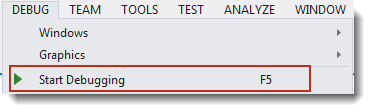
- If you get a message asking if you would like to rebuild the SampleRTDLL, click No. A rebuild is not necessary since there have been no changes since the previous build.
- The debugger will stop at the first breakpoint, which is indicated by a yellow arrow in a red circle.

- At the first breakpoint, click Modules at the bottom of the window. If symbols are not loaded for either of the modules, right-click and select Load Symbols from the pull-down menu.
Note: If Modules is not available from the status bar at the bottom of the window, select Modules from the Windows option in the Debug pull-down menu to open the modules window.

- If necessary, locate the symbol file in the eRTOSDebug subdirectory.
The Output window should now indicate that symbols are loaded.
- To continue from the first breakpoint, select Continue from the Debug pull-down menu or press the F5 key.
- When the debugger stops at the second breakpoint, if this is the call to the toggle function, select Step Into or press the F11 key to step into the DLL function.
Focus will now turn to the SampleRTDLL.c source code.

- To continue, select Step Out from the Debug pull-down menu or press Shift+F11.
When focus returns to the SampleRTDLL.c program, you can select to Continue or to Stop Debugging from the Debug pull-down menu. If you select Continue, program execution will continue until it completes or reaches another breakpoint. If you select Stop, program execution will halt.
