Open topic with navigation
Converting a Windows Device to an RTX Device
The procedure that follows adds RTX INF support and updates Windows
device drivers with the RTX Pnp Driver.
To convert a Windows device to an RTX device:
- Open the RTX Properties Control Panel.
- On the Hardware tab, click the Settings
button under RTX devices. You'll see a list of the current Plug and Play
devices on your system. If Show filtered
list is checked, only the most common devices are displayed; if
it is unchecked, all devices are displayed. To update the device information,
click the Refresh button.
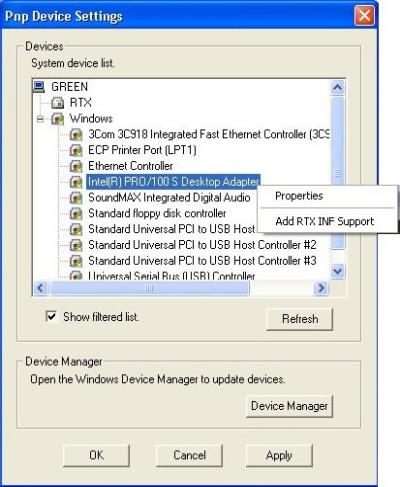
- Right-click the Windows device RTX will support,
then click Add RTX INF Support.
- Click Apply. RTX automatically edits the RtxPnp.inf file to support this device.
- Click Device
Manager to display the Windows Device Manager.
- On Windows 7:
- Locate and right-click the RTX device you
want to convert, and select Properties.
From the Driver tab, click Update Driver.
- Click Browse
my computer for driver software, then click Let
me pick from a list of device drivers on my computer.
- Select the RTX Supported option and click
Next.
NOTE: IntervalZero cannot sign its RtxPnp.inf file because it gets modified to support customer devices. Ignore any messages that the driver is not digitally signed or that the publisher cannot be verified.
- Click Install
this driver software anyway.
- Click Close
in the successful driver install message window.
- Click Close
in the Properties dialog box.
After you click Refresh, the driver is displayed under Rtx
Drivers in the Device Manager window.

- Rebooting the system may be required, depending
on your environment:
Hints and Tips
- In the event that the RTX Properties control panel
reports a hardware resource conflict, the hardware resources that led
to the conflict are reported. These resources will not necessarily match
the boot configuration resources reported by Windows.
- When Windows is unable to assign hardware resources
to a device without introducing a resource conflict, Windows reports the
device's requested boot hardware resource configuration.
- It has been noted that, in some circumstances,
Windows may initially fail to detect hardware resource conflicts. The
conflict is not reported following the first system boot that follows
the attempt to assign the hardware resources. The conflict may be correctly
reported following subsequent system boots. The RTX Control Panel correctly
reports hardware resource conflicts even when Windows fails to report
a conflict.
- Some multiprocessor systems may exhibit limitations
using ISA PnP devices. You can verify the device by testing the device
as a Windows device before converting it to RTX.
- When a device is converted to RTX, RTX replaces the function driver for the device. If the replaced driver previously served as the power policy owner for the device, actively transitioning the device's power state, the device may not be accessible from RTX. The RtxPnp driver used by RTX does not currently power up devices, so a device that was not powered up at the time that it was converted to RTX is not accessible following the conversion. To avoid this problem, ensure that the device is powered up before converting it to RTX.
