Note: The MaxRT wRTOS Debugger supports relative pathnames.
Note: The MaxRT wRTOS Debugger does not support loading RTSS files with pathnames containing Unicode characters with code points greater than 255. Unsupported characters include all Japanese, Chinese, Greek, Hebrew, Cyrillic, and Korean characters, and characters from many other non-Latin languages. The only supported characters are ASCII and ISO Latin-1 (ISO/IEC 8859-1), which includes characters with Unicode code points between 128 and 255, such as 'µ', 'ö', 'é', 'ß', 'ñ', 'ç'.
Running an RTSS Application in the Debugger
wRTOS provides a Visual Studio integrated base debugger and launch provider that Visual Studio uses when debugging real-time applications.
To use Visual Studio to debug:
- Ensure that RTSSDebug is selected from the Solutions Configurations pull-down menu.
- Set a breakpoint in the application.
- Select Build Solution from the Build pull-down menu.
- Ensure that MaxRT wRTOS Debugger is the selected debugger. Note that this will already be selected when RTSSDebug is the selected configuration.
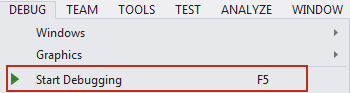
- Click Start Debugging or press F5.
Note: wRTOS also supports running the application without debugging through the SDK.
wRTOS provides a Visual Studio integrated base debugger and launch provider that Visual Studio uses when debugging Real-time applications. RTSS applications are started by the wRTOS loader instead of the Windows loader. For this reason, when debugging RTSS applications in Visual Studio, the following options in the Debug pull-down menu (which would assume Windows control) are not supported:
- Attach to Process
- Detach All
Build Configurations
Four configurations for creating applications are generated in Visual Studio when you create a project using the wRTOS Application template:
x64
- RTSSDebug – Real-time application that has debug flags enabled
- RTSSRelease – Optimized Real-time application that does not contain additional debug information
- Debug – Windows 64-bit application linked to wRTOS that has debug flags enabled
- Release – Windows 64-bit application linked to wRTOS
Note: We recommend that you select the RTSSDebug configuration of the application you want to debug, as this configuration is set up to generate debug information.
wRTOS Debuggers
When you create an RTSS application with the wRTOS Application template, new debugger options are added to Visual Studio:
- MaxRT wRTOS Remote Debugger – debug RTSS applications on a target system remotely. See Remote Debugging with Visual Studio for more information.
- MaxRT wRTOS Debugger – debug RTSS applications. This debugger is automatically selected when the RTSSDebug configuration of the project is selected.
Set Debugging Properties
Optionally, you can set debugging properties for the application you want to debug. You can:
- Set the ideal processor on which the main thread of the debugged process will run.
- Set the affinity mask that specifies the processor(s) on which the debugged process will run.
See Setting Debugging Properties in Visual Studio for more information.
Debugging
Note: Data breakpoints are not supported.
To debug an RTSS application:
- Make sure MaxRT wRTOS Debugger is selected as the debugger. Note that this debugger is automatically selected when the RTSS configuration of the project is selected.
- From the Solution Explorer window, open the source file by right-clicking the file name and selecting Open, or by double-clicking the file name.
- To start debugging, select Start Debugging from the Debug pull-down menu, or press the F5 key.
- The wRTOS Server console window opens and displays text from the program, if the application contains RtPrintf calls.
- While debugging, you can select to Continue or Stop Debugging from the Debug pull-down menu. If you select Continue, program execution will continue until it is completed or reaches another breakpoint. If you select Stop, program execution will halt.
After you have finished the debug session, you can close the wRTOS Server console window.
For a more comprehensive example of debugging an RTSS application, see MiniTutorial: Debugging Applications in Visual Studio.
