Follow the steps below to create a 32-bit User Space RTSS application.
To build a 32-bit User Space application:
- Create a wRTOS application using the wRTOS Application template in Visual Studio. For more information, see Using the wRTOS Application Template.
- Right click on the solution name in the Visual Studio Solution Explorer window, and then choose Configuration Manager… from the context menu.
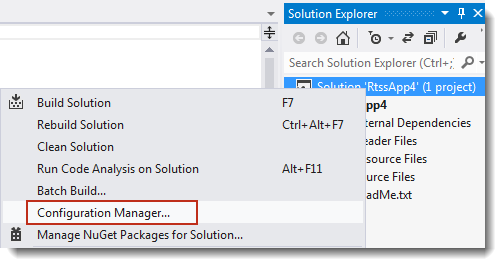
- The Configuration Manager window appears. On the Active solution platform: menu, choose <New…>.
- The New Solution Platform dialog appears, showing Win32 under Type or select the new platform.
- Click Close. The Solution Platforms list box should now show Win32.
- Select either Release or Debug from the Solution Configurations list box.
- Build the project normally.
Note: It is not possible to build a working RTSS or RTDLL binary using the following combinations from the Solution Configurations and Solution Platforms list boxes:
• RTSSDebug / Win32
• RTSSRelease / Win32
Note: Batch builds that include the following configurations will fail. To resolve this issue, clear the check boxes for each configuration.
• RTSSDebug / Win32
• RTSSRelease / Win32
To make a C/C++ project that uses RTAPI.DLL:
- In Visual Studio, add these #include directives to the project’s source code:
- Open the Property Pages for the project.
- Set Configuration to All Configurations and set Platform to All Platforms, and then do the following:
#include <windows.h>
#include <RtApi.h>
- Under C/C++ > General > Additional Include Directories, add:
$(wRTOSSDKDir1)include
- Under Linker > Input, add:
RtApi.lib
- Set Platform to x64, and then do the following:
- Under Linker > General > Additional Library Directories, add:
$(wRTOSSDKDir1)lib\amd64
- Set Platform to x32, and then do the following:
- Under Linker > General > Additional Library Directories, add:
$(wRTOSSDKDir1)lib\x86
- Click OK, and then rebuild the project.
