You can launch wRTOS Analyzer using the following methods.
To run wRTOS Analyzer from the Start menu:
- In the Windows Start menu, navigate to the MaxRT wRTOS 1.1 Runtime section and click wRTOS Analyzer.
- The wRTOS Analyzer dialog appears. You can select a directory and choose the desired options to run the tool. For more information about the output level, see wRTOS Analyzer Usage.
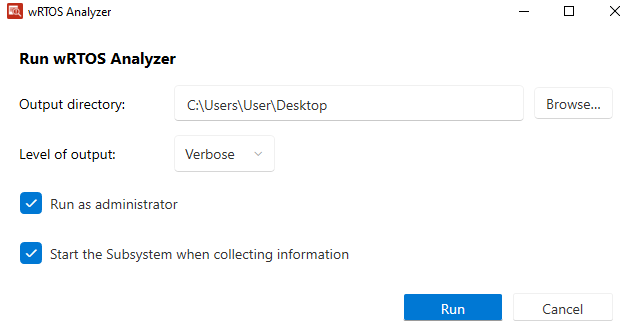
Note: You must select Run as administrator to collect information from the Windows Boot Configuration Database (BCD) and standard Windows security features.
Note: When Start the Subsystem when collecting information is selected, it does not stop the Subsystem when it finishes generating the report.
To run wRTOS Analyzer from wRTOS Settings:
- Open wRTOS Settings. Select Tools to open the Tools page.
- Click wRTOS Analyzer to run the tool. The wRTOS Analyzer dialog appears (see image above). You can select a directory and choose the desired options to run it.
When the analysis is complete, the resulting output file wRTOSAnalyzer DD-MM-YYYY HH-MM-SS.txt will be saved to the directory selected in the wRTOS Analyzer dialog.
