Note: Some wRTOS Settings controls require Windows Administrator privileges.
Note: wRTOS Settings content might be inaccessible depending on whether components are installed and licensed. For example, when the Network feature is not licensed, TCP/IP-related content will be inaccessible.
Note: Members of wRTOSUsers cannot change some wRTOS Settings controls. A warning dialog appears when a wRTOSUsers member attempts to access or change a setting that requires wRTOSAdministrators permissions. See User Groups and Access Permissions for more information.
To open wRTOS Settings:
In the Start menu, navigate to MaxRT wRTOS 1.1 Runtime and click wRTOS Settings.
In this section:
Using the Home Page
On the wRTOS Settings home page, you can search for settings, navigate to configuration pages within the tool, and access other product tools and resources.
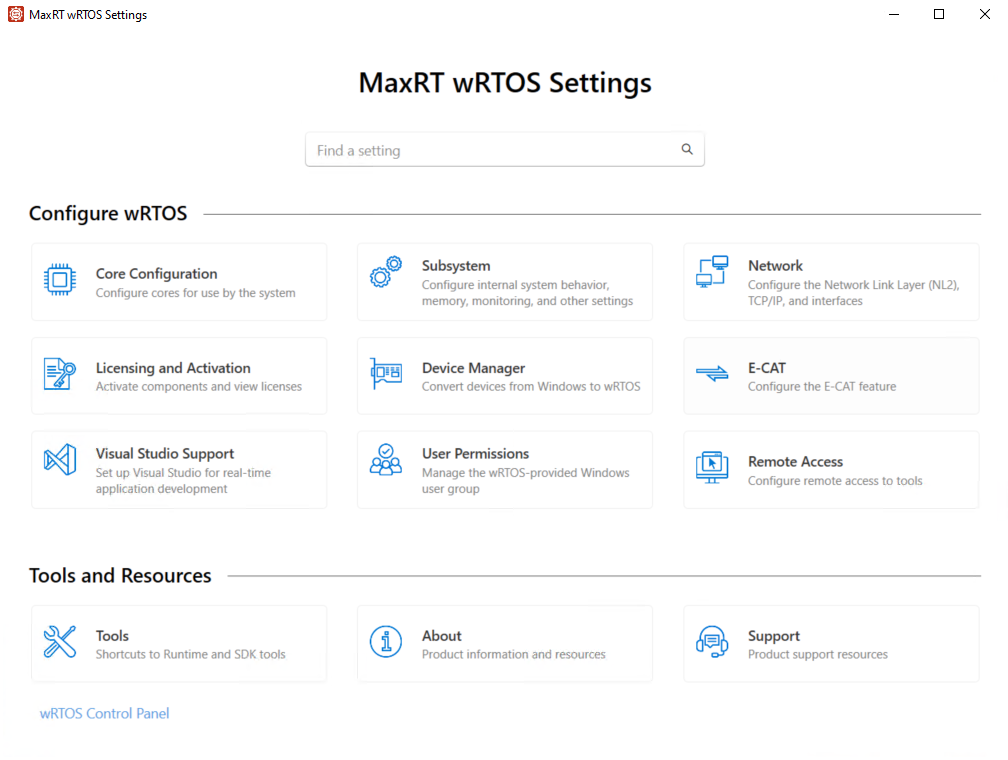
Configure wRTOS
| Icon | Name | Description |
|---|---|---|
|
|
Opens the Core Configuration page, where you can view the current core configuration settings and assign available system cores to Windows or wRTOS. |
|
|
|
|
|
|
|
Opens the Network page, where you can access sub-pages for configuring the Network Link Layer (NL2), TCP/IP, interfaces, and other network components. |
|
|
|
Opens the Licensing and Activation page, where you can activate product components and view licenses. |
|
|
|
Device Manager |
Opens the Windows Device Manager, where you can convert devices from Windows to wRTOS. Note:
|
|
|
Opens the E-CAT page, where you can configure settings for the EtherCAT MainDevice. |
|
|
|
Opens the Visual Studio Support page, where you can set up Visual Studio for real-time application development and access SDK resources. Note: This page requires a wRTOS SDK to be installed and activated. |
|
|
|
User Permissions |
Opens the Windows User Accounts Control Panel, where you can manage the wRTOS-provided Windows user group. Note:
|
|
|
Opens the Remote Access page, where you can configure remote debugging support and access to tools. |


Tools and Resources
| Icon | Name | Description |
|---|---|---|
|
|
Opens the Tools page, where you can access other wRTOS tools. |
|
|
|
Opens the About page, where you can view installed wRTOS Runtime and SDK components, check for updates, and view a history of installed product versions. |
|
|
|
Opens the Support page, where you can analyze system information, export and import configuration settings, and access additional product resources. |


Common UI Elements
The table below lists the common UI elements that appear throughout the wRTOS Settings tool.
Navigation
| Icon | Option | Description |
|---|---|---|

|
Home |
Opens the Home page, where you can search for settings, navigate to configuration pages within the tool, and access other product tools and resources. |
Control
| Icon | Option | Description |
|---|---|---|
|
|
Start |
Starts the Subsystem or component. |
|
|
Stop |
Stops the Subsystem or component. |

|
Restart |
Restarts the Subsystem or component. This is required before some changes to the Subsystem settings take effect. |


Global
| Icon | Option | Description |
|---|---|---|
|
|
Delete |
Deletes the selected item. |
|
|
Info |
Opens a window with additional information about the item. |

|
Help | Opens the wRTOS Help system. |
|
|
Refresh |
Refreshes the current page. |
|
|
Reset to factory defaults | Resets all settings on the current page to their factory default values. |


Messages, Errors, and Warnings
Errors, warnings, and persistent messages, such as prompts to restart the Subsystem, appear in the wRTOS Settings footer at the bottom of the tool.

When there are multiple active messages, errors, or warnings that require attention, a View all link appears in the footer. Click this link to open a dialog containing a list of the active errors and warnings.
When a footer communication references a specific setting, the tool provides a link to the wRTOS Setting page where that setting resides.
Related topics:
