This component requires a license. wRTOS E-CAT Diagnostic Tool requires a wRTOS Fieldbus license (WFBS64). Contact IntervalZero Sales to purchase licenses.
Opening wRTOS E-CAT Diagnostic Tool
To open wRTOS E-CAT Diagnostic Tool:
- Add a MainDevice instance before opening the E-CAT Diagnostic tool.
- Start your E-CAT application (e.g., the E-CAT Configuration tool) and create an EtherCAT connection to the hardware devices.
- In the Start menu, navigate to wRTOS 1.1 Runtime and select E-CAT Diagnostic Tool. Alternatively, you can open the E-CAT Diagnostic Tool from wRTOS Control Panel.
Note: If multiple MainDevice instances are configured, the Select E-CAT MainDevice dialog appears. Select an instance from the E-CAT MainDevice instance drop-down list.
Exploring wRTOS E-CAT Diagnostic Tool User Interface
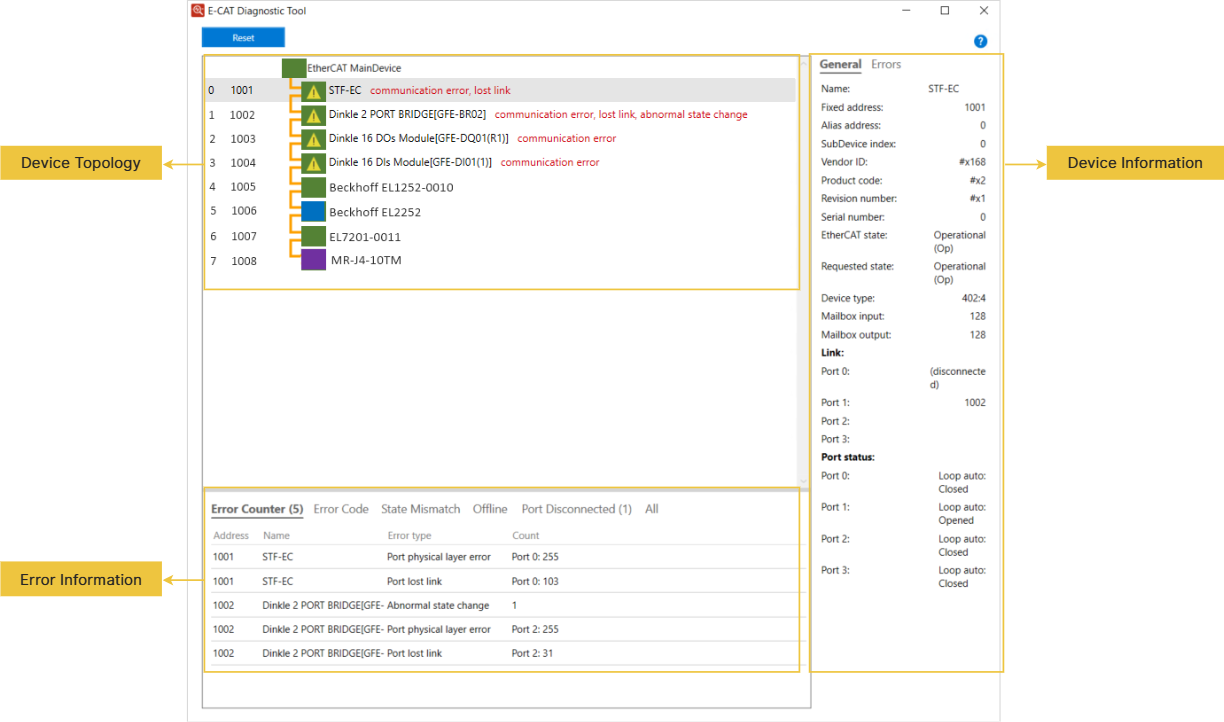
wRTOS E-CAT Diagnostic Tool consists of three sections: the Device Topology in the center, the Device Information on the right, and the Error Information at the bottom.
The Reset button is enabled when the MainDevice is in the OP state. Clicking Reset resets all displayed errors, allowing you to identify persistent issues. You can click  to display the tool's help.
Device Topology
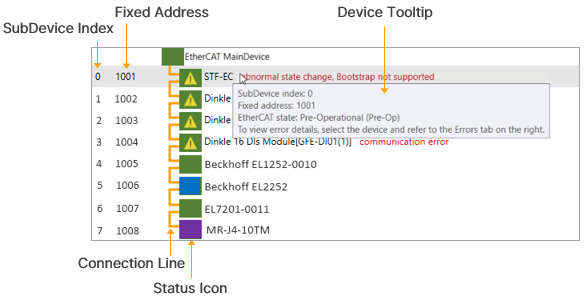
Device Topology shows the network connectivity between the EtherCAT MainDevice and SubDevices. If errors occur or EtherCAT states change, error messages and status icons provide immediate notification.
|
Name |
Description |
|---|---|
|
SubDevice Index |
The SubDevice's index. |
|
Fixed Address |
The SubDevice's fixed address, set by the MainDevice during startup. Values start at 1001 and follow the EtherCAT connection order. |
|
Device Tooltip |
Hover over a MainDevice or SubDevice to view its tooltip. |
|
Connection Line |
Displays the connectivity and online state of devices on the EtherCAT network. Connection types may vary depending on the application. For example, some applications may require a coupler or junction to extend the network and connect additional devices. For more details, see Connection Line and Connection State below. |
|
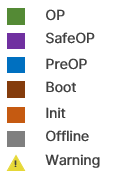
Status Icon |
Colors indicate different EtherCAT states.
A yellow warning sign and a red error description are displayed when errors occur. You can determine the error type from the red error description. To view errors in detail, you can:
For more details on the error descriptions, see Error Descriptions below. |

Connection Line
The following examples illustrate connection lines for different connection types:
- General Connection
|
Devices without Coupler/Junction |
Devices with Coupler/Junction |
|---|---|
|
|
|
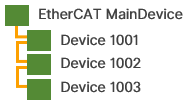
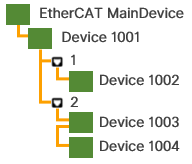
 : Represents the device's port. In this example, Device 1001 has two ports. Port 1 connects to Device 1002 and Port 2 connects to Devices 1003 and 1004.
- Redundant Connection
This component requires a license. This requires the wRTOS E-CAT Cable Redundancy license (WECR64).
|
Devices without Coupler/Junction |
Devices with Coupler/Junction |
|---|---|
|
|
|
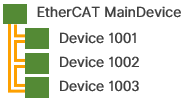
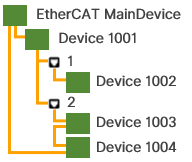
Connection State
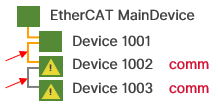
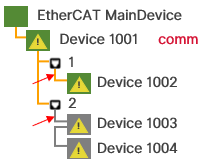
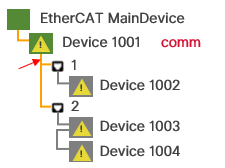
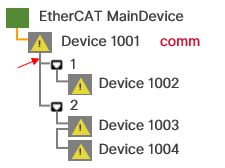
Line colors indicate the connection or online state.
|
Devices to Device Linking |
Port to Device Linking |
Device to Port Linking |
|
|---|---|---|---|
|
Yellow line: connected Gray line: disconnected |
Yellow line: connected Gray line: disconnected |
Yellow line: device is online (Device 1001) |
Gray line: device is offline (Device 1001) |
Error Descriptions
The red error descriptions appended to devices in the Device Topology are displayed when errors occur. The following are the definitions of these error descriptions.
|
Device |
Error Description |
Definition |
|---|---|---|
|
MainDevice |
Frame lost |
One of the following errors occurred:
|
|
SubDevice |
Communication error |
One of the following errors occurred:
|
|
SubDevice |
Lost link |
One of the following errors occurred:
|
|
SubDevice |
AL (status) error |
The EtherCAT AL status code is not zero |
Device Information
You can view the device information or errors for a specific device in the Device Information section on the right. To do this, click on a device in the Device Topology, and then select the General or Errors tab in the Device Information section.
The information or errors displayed in the Device Information section are available only when the selected device is in specific state(s). Please refer to the Available MainDevice EtherCAT State or Available SubDevice EtherCAT State column in the tables below for availability.
- Any indicates any of the EtherCAT state. You can refer to the value in RTECAT_ETHERCAT_STATE to verify the exact state.
- >= Init includes the states of Init, PreOP, SafeOP, OP and Boot, based on the EtherCAT device state transition sequence:
- Offline → Init → PreOP → SafeOP → OP
- Offline → Init → Boot
When a MainDevice is selected in the Device Topology, its information is displayed in the Device Information section.
|
Information |
Description |
Available MainDevice EtherCAT State |
|---|---|---|
|
Vendor ID |
The EtherCAT vendor ID of the company. |
>= Init |
|
Product code |
A vendor-specific product code used for identification in conjunction with the vendor ID. |
>= Init |
|
Revision number |
A vendor-specific revision number. |
>= Init |
|
Serial number |
A vendor-specific serial number. |
>= Init |
|
EtherCAT state |
The MainDevice's EtherCAT state. |
>= Init |
|
Cyclic frame lost |
The number of cyclic frames lost. |
OP |
|
Acyclic frame lost |
The number of acyclic frames lost. |
OP |
When a SubDevice is selected in the Device Topology, its information and errors are displayed in the General and Errors tabs respectively in the Device Information section.
General tab:
|
Information |
Description |
Available SubDevice EtherCAT State |
|---|---|---|
|
Name |
The device name. |
Any |
|
Fixed address |
The SubDevice's fixed address. |
Any |
|
Alias address |
Can be written by the MainDevce and is stored in the SubDevice EEPROM. This value is retained after powering-off and can be used to differentiate identical SubDevices. |
Any (but could be updated when the device is reconnected) |
|
SubDevice index |
The index of the SubDevice array. |
Any |
|
Vendor ID |
The EtherCAT vendor ID of the company. |
Any |
|
Product code |
A vendor-specific product code used for identification in conjunction with the vendor ID. |
Any |
|
Revision number |
A vendor-specific revision number. |
Any (but could be updated when the device is reconnected) |
|
Serial number |
A vendor-specific serial number. |
Any (but could be updated when the device is reconnected) |
|
EtherCAT state |
The SubDevice's EtherCAT state. |
Any |
|
Requested state |
The requested EtherCAT state of the SubDevice. The request is made by the MainDevce. |
>= Init |
|
Device type |
The SubDevice's type. |
Any |
|
Mailbox input |
The size of a SubDevice's input mailbox, in bytes. A size between 128 and 512 bytes is considered moderate, while a size under 32 bytes is considered small. |
Any |
|
Mailbox output |
The size of a SubDevice's output mailbox, in bytes. A size between 128 and 512 bytes is considered moderate, while a size under 32 bytes is considered small. |
Any |
|
Link (Port 0, 1, 2, 3) |
The SubDevice or MainDevice that is connected or expected to be connected to the port. If it's a SubDevice, its fixed address is displayed. |
Any |
|
Port status (Port 0, 1, 2, 3) |
Displays the loop control setting and port state. For example, "Loop Auto: Opened" indicates that the loop setting is auto and the port is opened. Each port can be configured as Open, Close, Auto, and Auto Close. The current state can be Opened or Closed.
|
OP |
Errors tab:
|
Information |
Description |
Available SubDevice EtherCAT State |
|---|---|---|
|
AL status code |
Displays the error code indicating the most recent problem encountered by the SubDevice. For the list of error codes, see EtherCAT AL Status codes. |
>= Init |
|
AL error |
Displays the error corresponding to the EtherCAT AL Status codes. |
>= Init |
|
Working counter error |
The number of cycles in which the datagram responsible for data exchange of the SubDevice was returned with an invalid working counter. |
OP |
|
Not present count |
The number of times the MainDevice lost the physical link with the SubDevice. |
Any |
|
Abnormal state change |
The number of times the SubDevice autonomously transitions to a lower state without a request from the MainDevice. |
Any |
|
Frame error (Port 0, 1, 2, 3) |
The Ethernet frame error count for ports 0, 1, 2, and 3. |
OP |
|
Physical layer error (Port 0, 1, 2, 3) |
The physical layer communication error count for ports 0, 1, 2, and 3. |
OP |
|
Link lost (Port 0, 1, 2, 3) |
The link lost count for ports 0, 1, 2, and 3. |
OP |
Error Information
You can check all errors in the Error Information section at the bottom, where errors are listed one by one and categorized into different tabs.
TIP: In a table, double-click on a row can select the device in the Device Topology. You can further check the general information or errors of the device in the Device Information section.
|
Name |
Description |
|---|---|
|
Error Counter |
Lists the devices with non-zero error counters. Error counter types:
|
|
Error Code |
Lists the devices with non-zero AL status code. |
|
State Mismatch |
Lists the devices with EtherCAT states different from the MainDevice's. The offline devices are excluded. |
|
Offline |
Lists the offline devices. |
|
Port Disconnected |
Lists the devices where at least one of the ports is expected to be connected but is disconnected. |
|
All |
Lists all the information for devices. You can search for a device by its name, address, vendor ID, product code, revision number, or serial number. Simply enter text into the Find input box to initiate the search. The search function is not case-sensitive. |
