wRTOS Control Panel
Note: wRTOS Control Panel only displays installed and licensed wRTOS components. Ensure that the components you wish to control are installed and licensed.
Note: wRTOS Control Panel does not show component status information when the wRTOS Message Bus service is not running.
Video available. See the Control Panel video on our YouTube channel for a demo of this tool.
Opening wRTOS Control Panel
To open wRTOS Control Panel:
In the Start menu, navigate to MaxRT wRTOS 1.1 Runtime and select wRTOS Control Panel.
You can also open wRTOS Control Panel by clicking the wRTOS System Tray icon or selecting the Show Control Panel option in the wRTOS System Tray right-click menu.
To close wRTOS Control Panel:
When wRTOS Control Panel is open, select the Exit Control Panel option in the wRTOS System Tray right-click menu.
You can also select the Exit option in the wRTOS System Tray right-click menu to terminate both wRTOS Control Panel and wRTOS System Tray.
Note: Clicking the Close icon in the upper-right corner of wRTOS Control Panel will minimize it to wRTOS System Tray instead of terminating it. To restore wRTOS Control Panel, click the wRTOS System Tray icon.
Using wRTOS Control Panel
Before using wRTOS Control Panel, ensure that the desired wRTOS components are installed and licensed. If a component is not installed and selected for display, it will not appear on wRTOS Control Panel. If it is not licensed, you cannot use its corresponding control functions. For more information on license settings, see Licensing and Activation Settings.
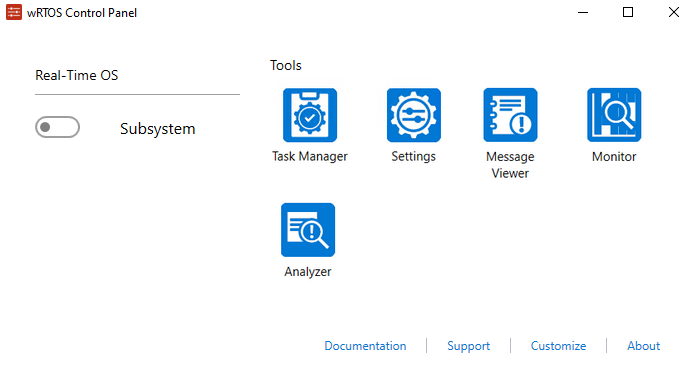
The above image illustrates that no wRTOS components are displayed on wRTOS Control Panel when none are installed and selected for display.
wRTOS Control Panel User Interface
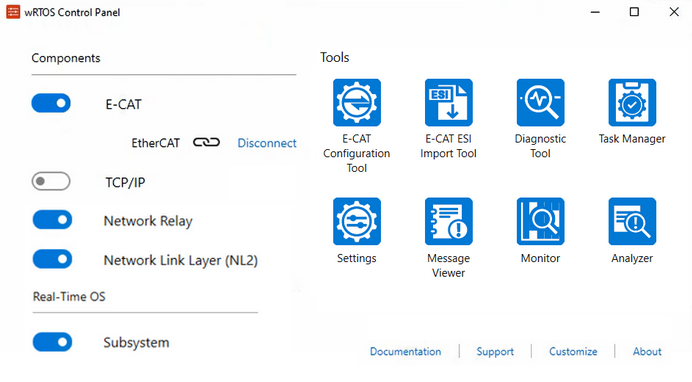
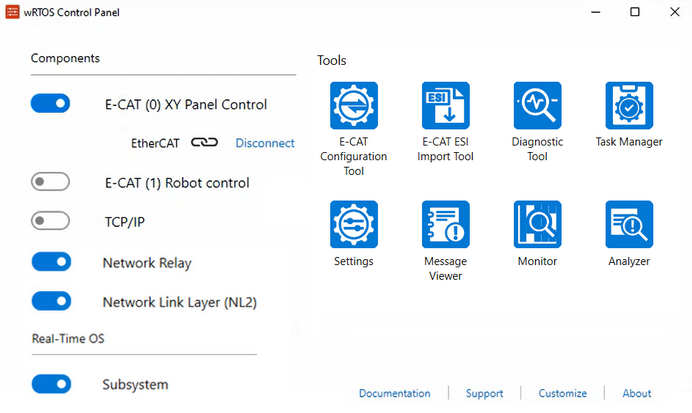
wRTOS Control Panel is organized into three sections. The left section is for controlling licensed components and the wRTOS Subsystem. The right section displays commonly used wRTOS tools, while the bottom-right section provides additional options and help.
Controlling the wRTOS Subsystem and Components
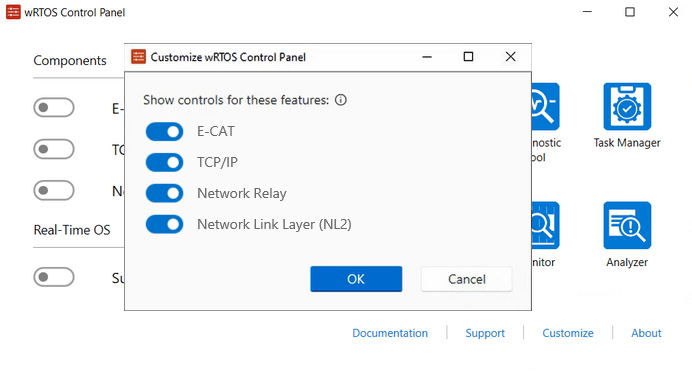
When opening wRTOS Control Panel for the first time, the Customize wRTOS Control Panel dialog appears, allowing you to select the desired components to display. Toggle the switches on to display those features, then select OK. The selected components will be displayed on wRTOS Control Panel.
To change the component display settings at any time, click Customize in the bottom-right section. This reopens the Customize wRTOS Control Panel dialog.
Note: The Customize wRTOS Control Panel dialog only lists installed wRTOS components. If the components are not licensed, they can't be selected. See Customize for more details.
After selecting the desired components, you can control the wRTOS Subsystem and wRTOS components using their toggle switches. You can also view the component status once they have started.
To start/stop the wRTOS Subsystem or wRTOS components, set the toggle switch to ON or OFF.
Note: When starting or stopping the wRTOS Subsystem or a wRTOS component, the dependent components will also start or stop. For example, if you stop the NL2 component, all E-CAT MainDevice instances and TCP/IP components will stop accordingly. If you start the TCP/IP or E-CAT component, the wRTOS Subsystem and the NL2 component will also start.
E-CAT component connection status
When starting the E-CAT component after connecting the EtherCAT hardware devices to the MainDevice, an EtherCAT connected icon  and the Disconnect text button appear. Click Disconnect to disconnect the hardware from the MainDevice.
You must create at least one E-CAT MainDevice instance before starting the E-CAT component. If multiple E-CAT MainDevice instances exist, wRTOS Control Panel will display all of them with their specified names and numbers.
Note: The MaxRT wRTOS E-CAT Multiple MainDevices license is required to use more than one E-CAT MainDevice instance.
wRTOS Tools
This section provides shortcuts to launch several commonly used wRTOS tools.
|
Tool |
Description |
|---|---|
|
A tool for connecting, monitoring, and controlling EtherCAT devices. Note: The E-CAT Configuration tool appears when the E-CAT component is selected for display. |
|
|
This tool allows you to import EtherCAT SubDevice Information (ESI) files for your EtherCAT hardware devices and save the ESI data into the E-CAT component database. This enables the E-CAT component to connect to and interact with your EtherCAT hardware devices. Note: The E-CAT ESI Import tool appears when the E-CAT component is selected for display. |
|
|
This tool allows you to monitor the connectivity between the EtherCAT MainDevice and SubDevices on the EtherCAT network. It displays device topology, EtherCAT states, and communication errors, helping you quickly identify connection issues and device faults. Note: The E-CAT Diagnostic tool appears when the E-CAT component is selected for display. |
|
|
Displays and allows control of all active real-time and Windows applications linked to wRTOS on the system. |
|
|
Activate product components, set the wRTOS boot configuration, and configure default behavior for the Real-Time Subsystem (RTSS), real-time applications, networking, fieldbuses, and other features. |
|
|
View and record debug or log messages generated during the execution of real-time applications. |
|
|
Traces the behavior of your real-time applications by recording significant events that occur during execution of those applications. |
|
|
Retrieves status information and generates a file useful for analyzing the current system. |
|
|
A graphical tool for recording and visualizing data from real-time applications. Applications define variables via the Variable Database API, and Scope uses the Variable Database logging function to capture them and display their values over time. |
Options and Help
This section provides additional options and help.
Documentation
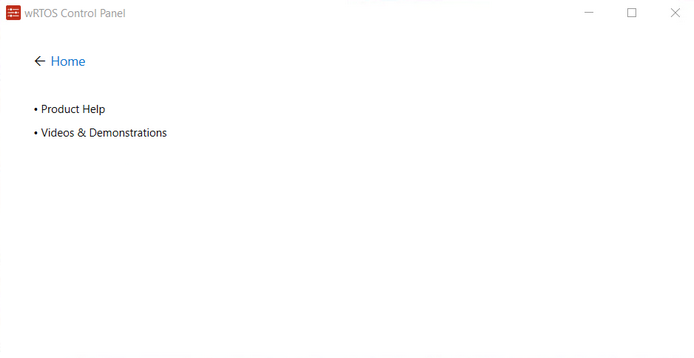
The Documentation option provides direct access to online resources, including Product Help and Videos & Demonstrations.
Support
The Support option provides direct access to IntervalZero's online Customer Support Portal.
Customize
The Customize option opens the Customize wRTOS Control Panel dialog, allowing users to set their preferences for wRTOS Control Panel.
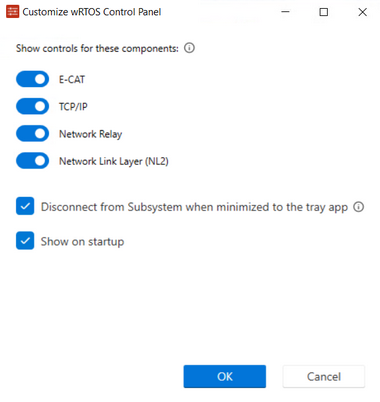
- Show controls for these components: Use the toggle switches to enable the desired components for display on wRTOS Control Panel. Only installed wRTOS components are listed in the Customize wRTOS Control Panel dialog. If the components are not licensed, they can't be selected. The image below shows that the E-CAT and TCP/IP components are installed but not licensed. The Network Relay and NL2 components are installed and licensed but are not selected, so they will not be displayed.
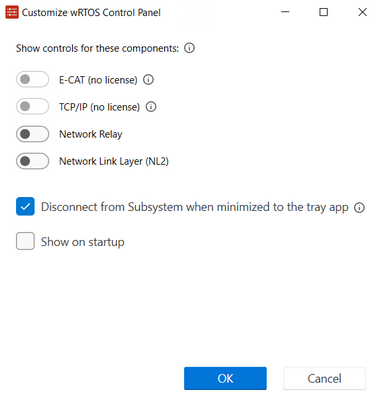
- Disconnect from Subsystem when minimized to the tray app: This option is selected by default. When this option is selected, wRTOS Control Panel disconnects from the wRTOS Subsystem once wRTOS Control Panel is minimized to wRTOS System Tray. At that point, wRTOS Control Panel stops checking the wRTOS Subsystem status.
Note: Select this option if you want your program to shut down the wRTOS Subsystem via the wRTOS API when wRTOS Control Panel is minimized to wRTOS System Tray.
Note: Enabling this option will increase the time required to restore wRTOS Control Panel, but it will allow the Subsystem to be stopped.
- Show on startup: Select this option to start wRTOS Control Panel when the computer starts.
About
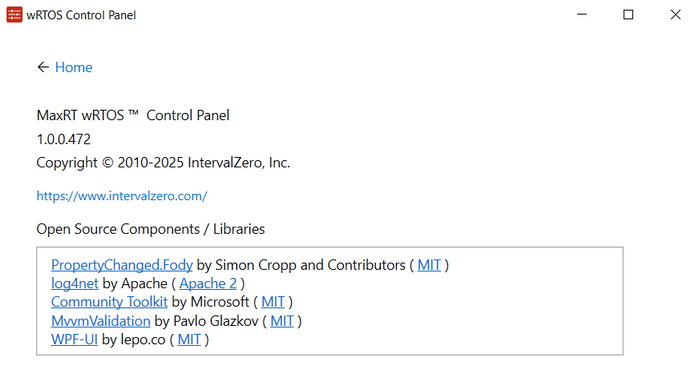
The About option provides wRTOS Control Panel information.