wRTOS Console
You can view output from real-time applications using wRTOS Console. You can configure the display and logging of real-time process output through the Process Output page in wRTOS Settings.
The text in the console's title bar will be different based on how Configure how real-time process output should be displayed is configured in wRTOS Settings:
|
Output display setting |
Title bar text |
|---|---|
|
All output in one console window |
wRTOS Subsystem Output |
|
Separate console window for each process |
The Process ID (PID) and name of the process. For example: PID 1013 - Srtm.rtss |
Note: Some per-process consoles may not display the RTSS module name. This can happen if the real-time process terminates before its output is displayed.
Toolbar Options
The toolbar at the bottom of the wRTOS Console window contains settings that allow you to change the console display, search, and save output.
Changing Text Attributes
Use the Text size and Text font settings to change the output text attributes. These settings persist per user between instances of wRTOS Console.
Wrapping Text
Click the Line Wrap button to wrap lines of text in wRTOS Console output. This setting persists per user between instances of wRTOS Console.

Clearing the Screen Buffer
Click Clear to clear the screen buffer (console display).

Saving Output
Click the Save button. This opens a Save As dialog, where you can specify the output location and file name. Changes to the save location are retained per user.

The folder location where real-time process output logs are saved is determined by the Log file location setting in the wRTOS Settings under Subsystem / Process Output.
The default filename depends on how display of real-time output is configured in wRTOS Settings:
|
Output display setting |
Log filename |
|---|---|
|
All output in one console window |
wRTOSSubsystemOutput<TimeStamp>.txt |
|
Separate console window for each process |
<PID><NAME>Output<TimeStamp>.txt |
Searching Console Output
To search console output, click the Find button or use the CTRL + F shortcut to open the Find dialog:

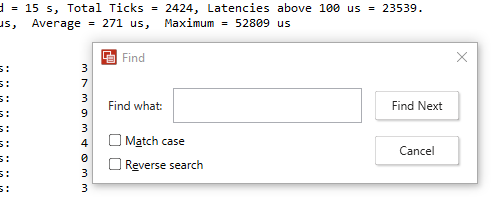
Enter the text you are searching for and click Find Next or press Enter. You can continuously click Find Next or press Enter to search for the next instance of the search text.
Optionally, you can:
- Select Match case to find only results that match the case of the search keywords.
- Select Reverse search to search console output in a backward direction.
Note: The maximum length of the search text is 80 characters.
If there are no more instances of the text being searched, a prompt will appear and searching will begin at the top of the document.
Shortcut Keys
wRTOS Console supports these shortcut key behaviors, in addition to most other standard Windows shortcut keys.
| Key | Result |
|---|---|
| Up arrow | Scrolls up by one line. |
| Down arrow | Scrolls down by one line. |
| Page up | Scrolls up by several lines. |
| Page down | Scrolls down by several lines. |
| Home | Scrolls to the top of the output. |
| End | Scrolls to the bottom of the output. |
| Ctrl + F | Opens the Find window |
