Note: You can also use the wRTOS Control Panel to control the Subsystem and other wRTOS features and components.
In the wRTOS Settings sidebar menu, the Subsystem start/stop options are available under Control the Subsystem.
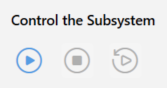
| Option | Description |
|---|---|

|
Starts the Subsystem. This also starts the Network Link Layer (NL2) and all other licensed components that are configured to start with the Subsystem or NL2. Note: The Start option is grayed out under the following conditions: • The Subsystem has not been configured. • The Subsystem is starting or stopping. • The user is not a member of the wRTOSAdministrators group. • The user is not booted into a wRTOS boot configuration. |

|
Stops the Subsystem. Note: We recommend you do not stop the Subsystem while processes are running. |
|
|
Restarts the Subsystem. |

Stopping the Subsystem While Processes are Running
If you attempt to stop the Subsystem while RTSS processes or Windows processes linked to wRTOS are still running, a dialog appears with a list of the running process(s). For example:
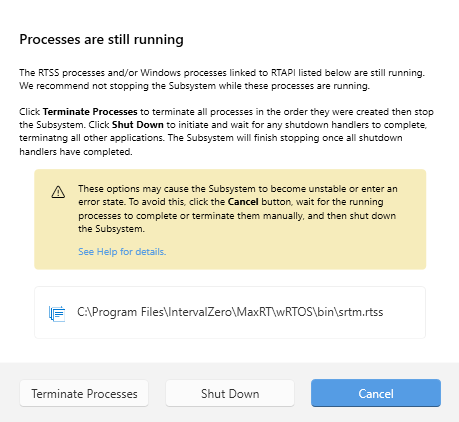
When this dialog appears, you can choose one of three options:
- Terminate processes – Terminates all running processes using RtTerminateProcess (or TerminateProcess for Windows applications linked to wRTOS) in the order they were started before attempting to stop the Subsystem.
Note: Internal objects may not be cleaned up correctly when a running process is terminated. This may cause the Subsystem to become unstable.
- Shut down – Windows processes linked to wRTOS (aka Proxy Process) are terminated before we initiate shutdown handlers for any running real-time processes that have them. All other real-time processes are terminated in the order they were created. Once all shutdown handlers are completed, the Subsystem will continue its shutdown process.
Note: There is no way to cancel Subsystem shutdown once it has been initiated. You must wait for all shutdown handlers to complete and the Subsystem to stop. This may take several minutes depending on the behavior of the shutdown handlers and may cause the Subsystem to display an error state. If you encounter Subsystem instability, reboot the system.
- Cancel – Cancels the Subsystem stop operation. This is the recommended method. Gracefully shut down all real-time processes and Windows processes linked to wRTOS in the correct order based on process dependencies and then stop the Subsystem.
Related topics:
