wRTOS System Tray
Understanding the Icons
There are four different icons wRTOS System Tray application could display, depending on the product(s) installed (Runtime and/or SDK), and the state of the system.
| Icon |
|
Meaning |
|---|---|---|
 |
|
(Only when Runtime installed) The Subsystem is installed. |
 |
|
(Only when Runtime installed) The Subsystem is running with no known issues. |
 |
|
(Only when Runtime installed) The Subsystem is stopped with no known issues. |
 |
|
The Subsystem is in an error state. When this icon is displayed, a balloon notification appears every 5 minutes with error details. You can also hover the mouse cursor over the icon for additional details. wRTOS System Tray checks to make sure wRTOS services are present on the system and active. When a service cannot be found, wRTOS System Tray displays a notification. To restore a missing service, you must reinstall wRTOS. |
Right-Click Menu Options
The right-click menu accessible from wRTOS System Tray icon provides links to wRTOS tools and Help information. The content of the wRTOS System Tray right-click menu will differ depending on whether the wRTOS Runtime and/or SDK is installed on the machine.
Note: wRTOS Settings options are unavailable when wRTOS Settings is running.
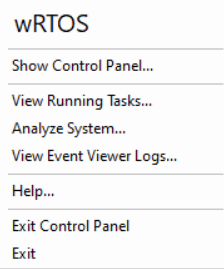
| Option | Description |
|---|---|
| Launch/Show Control Panel | Launches Control Panel, if it is not already running. If Control Panel is running, this option becomes Show Control Panel. |
| View Running Tasks (Runtime only) | Launches Task Manager, which allows you to view, start, or end any active RTSS process or Windows process linked to wRTOS on your system, whether started by Task Manager or with the RtssRun command line utility. |
| Analyze System (Runtime only) | Launches Analyzer, a diagnostic tool used for retrieving information that can help in evaluating system status and identifying potential system inefficiencies or other problem areas. |
| View Event Viewer Logs | Launches Windows Event Viewer, where you can view wRTOS event logs. |
| Help | Opens this wRTOS Help system. |
|
Exit Control Panel |
Exits the Control Panel, if open. |
| Exit | Exits the System Tray application. To restart the application after exiting, you must log out and then log back in. |
