About Licensing
In this section, we introduce important licensing concepts and discuss the licensing process.
In this topic:
Important Concepts
Below is a list of important concepts related to component activation.
Activation Key
You must have a valid activation key for each product component you want to activate. An activation key is a unique string of letters and numbers. You receive an activation key from products@intervalzero.com when you purchase or evaluate a wRTOS component.
License
A license string is generated from the activation key. This is the process by which one or more wRTOS components become activated, depending on the components you have purchased. The licenses are provided by the IntervalZero License Server. Licenses are node-locked, which means that they can only be used on a single machine or with a single dongle.
Retail licenses can either be perpetual or time limited. All evaluation licenses are time limited.
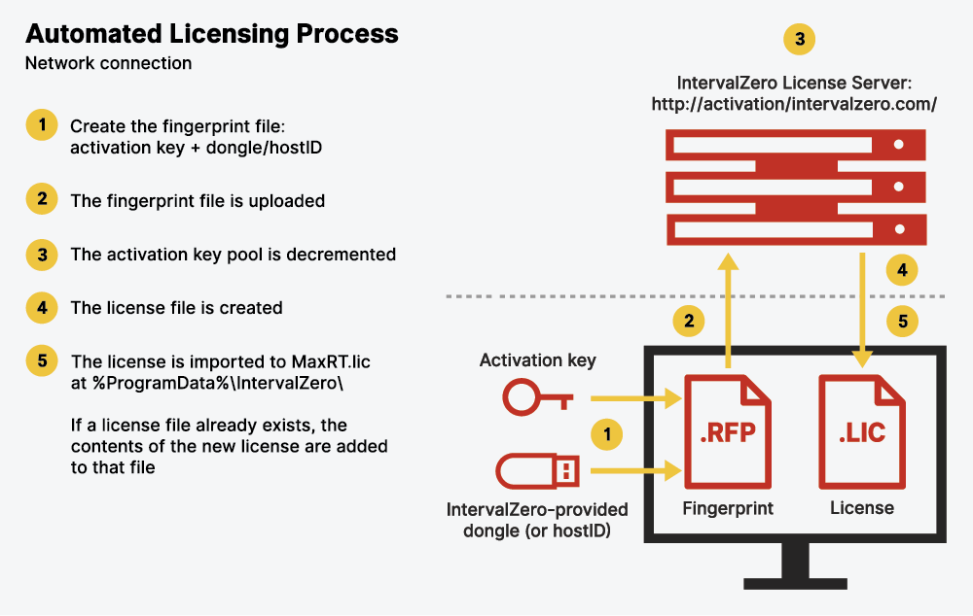
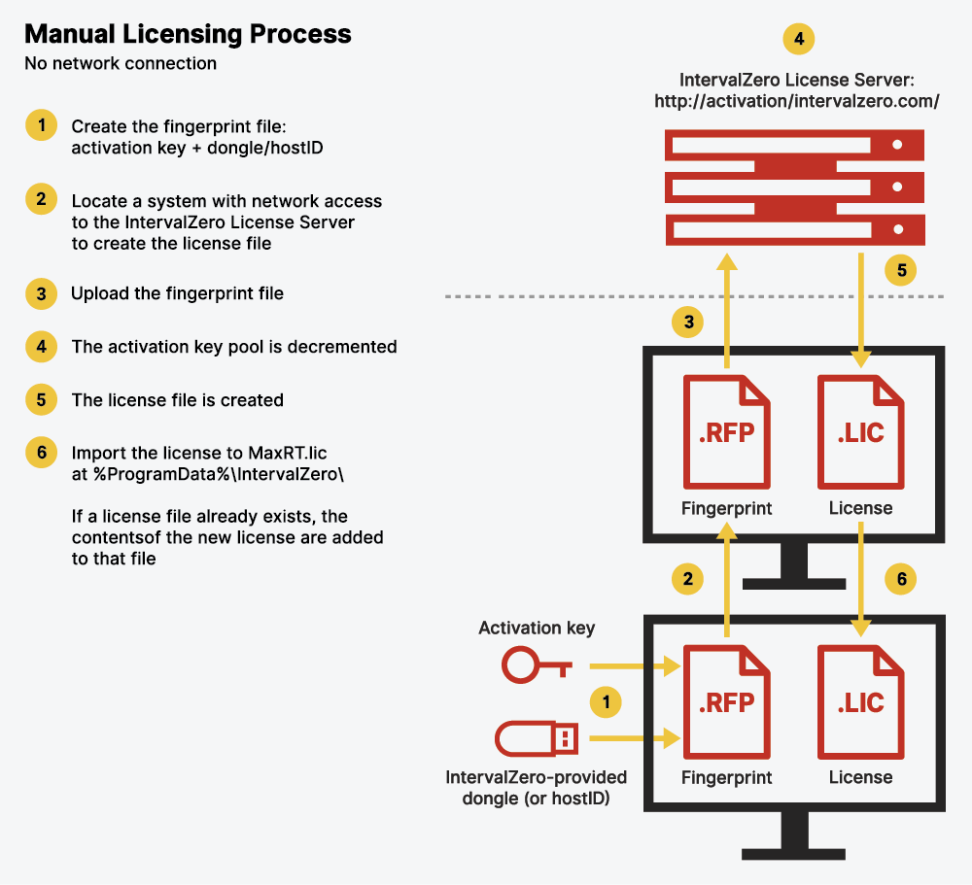
When activating components on a machine that is connected to a network, the license is automatically appended to the wRTOS License file. When the machine is not connected to a network, you must manually generate and import a license file, License.lic. The product components activated by your licenses are indicated in the Licensed features list on the wRTOS Settings Licensing and Activation page.
Note: Each wRTOS platform component has a unique product license code and requires a separate license.
License Server
The IntervalZero License Server serves the product license(s) that activates one or more wRTOS components, depending on what you have purchased. The activation key you specify on the wRTOS Settings Licensing and Activation page is tied to one or more specific licenses on the License Server.
Fingerprint File
The fingerprint file, Fingerprintfile.rfp, contains information specific to your activation key. This file is required in scenarios where you need to activate wRTOS components that are installed on a machine that is not connected to a network. In these scenarios, you create the fingerprint file on the wRTOS Settings Licensing and Activation page and transport that file to a machine with network connectivity. You then create a valid license file (License.lic) from the fingerprint file through the IntervalZero Activation web page at https://Activation.IntervalZero.com. For more information, see Manual Licensing below.
IntervalZero Dongles
You can license wRTOS components to a machine or IntervalZero-provided small form factor dongle, which holds a copy of the licenses.
Note: When a license is locked to a dongle, the dongle must be connected to the machine on which wRTOS is installed to use the wRTOS components activated by that license.
Note: A dongle is required when licensing the wRTOS Runtime on a Virtual Machine. The wRTOS SDK does not require a dongle in order to be activated on a Virtual Machine.
MaxRT Dongle Activation Utility
The MaxRT Dongle Activation Utility is a standalone utility that allows you to license MaxRT products to an IntervalZero-provided dongle. Instead of activating dongles on the target machine, you can activate them at another location and provide importable license files and dongles to your production environment.
The Licensing Process
The process for licensing wRTOS components differs depending on whether the machine on which wRTOS is installed is connected to a network. There are two distinct licensing processes: Automated and Manual. The diagrams below show the workflow for each process.
Automated Licensing
When the machine is connected to the network, the licensing process occurs automatically once a valid activation key is provided and activated.