To configure the IP Address and Subnet mask:
Note:
- Open the Internet Protocol Version 4 (TCP/IPv4) Properties:
- Control Panel > Network and Internet > View Network Status and Tasks > Connection: Ethernet > Properties > Internet Protocol Version 4 (TCP/IPv4) > Properties > Use the following IP address
- Set the IP Address to the IP address that you wish to use.
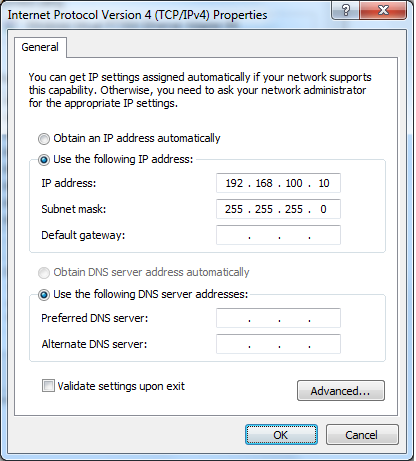
IMPORTANT: The Subnet mask you specify in Windows must match the Subnet mask specified in the wRTOS Settings. By default, the VirtualNIC interface sets the Subnet mask to 255.255.255.0
IMPORTANT: The Default gateway and DNS fields must be empty.
- Click OK.
To configure Windows Virtual wRTOS Ethernet Adapter properties:
The Windows Virtual wRTOS Ethernet Adapter Network Address is set to Not Present. It uses a default address of 02:50:F2:XX:XX:XX, where the last three octets are randomly generated using a count of the interval timer interrupts.
- Open Windows Device Manager:
- Control Panel > Hardware and Sound > Device Manager
- Expand the Network adapters branch.
- Right-click on Windows Virtual wRTOS Ethernet Adapter and select Properties. The Properties dialog appears.
- In the Advanced tab, you can configure:
- Maximum Frame Size (1514 to 16124)
- Receive Buffers (64 to 16384)
- Transmit Buffers (64 to 16384)
- Enable Receive Polling (Disabled / Enabled). Enabling this setting might improve Virtual Network driver performance.
Note: These values should match those configured for the interface in wRTOS Settings.
- Click OK.
Related Topics:
