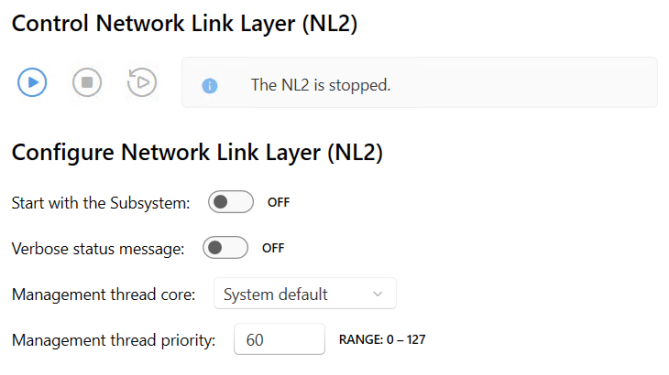
On the Network Link Layer (NL2) page in wRTOS Settings, you can control (start and stop) the NL2 component and configure its settings.
Note: Some settings require Windows Administrator privileges.
Note: You must restart the NL2 for your changes to take effect.
In this section:
 Accessing NL2 Settings
Control the Network Link Layer (NL2)
Under Control Network Link Layer (NL2), you can Start, Stop, and Restart the NL2 component. The NL2 status is displayed to the right of the controls.
Configure the Network Link Layer (NL2)
Start with the Subsystem
You can set the NL2 component to start automatically with the Subsystem.
To change this setting:
Do one of the following:
- Set the toggle switch to OFF to require the NL2 component to be started manually. The Subsystem must be running before the NL2 component can be started.
- Set the toggle switch to ON (default) to automatically start the NL2 when the Subsystem starts.
Verbose status messages
You can configure the NL2 component to provide status information at key points as it starts, runs, and shuts down. This can be helpful during development or when debugging an issue.
To change this setting:
Do one of the following:
- Set the toggle switch to OFF to turn off verbose status messages.
- Set the toggle switch to ON (default) to provide verbose status messages.
Management thread core
By default, the NL2 component uses the System default core configured on the Core Configuration page. You can change this by selecting a different core.
Note: NL2 component threads use this value.
To change this setting:
Choose a core number from the drop-down list.
Management thread priority
Set the priority of the NL2's management thread, which performs these tasks:
- NIC hardware initialization at startup.
- Serializes the requests from the NL2 applications.
- Non-deterministic tasks, like memory allocation.
- Hardware operations that do not involve transmitting or receiving frames.
- Cleanup when an NL2 application terminates.
- NIC hardware termination at shutdown.
This value must be in the range of 0 to 127, where 0 is the lowest priority, and 127 is the highest priority. The default priority is 60.
To change this setting:
Enter a new value in the text box.
RELATED Topics:
