You can convert ownership of PCI/PCIe devices between Windows and wRTOS using the Windows Device Manager, which you can access from wRTOS Settings.
Note: You should not convert a device that is currently in use.
To convert a device from Windows to wRTOS:
If you are converting a device that wRTOS does not provide out-of-the-box support for, you must create an INF file. For more information, see Creating an INF File for Custom Devices. For a list of drivers supported by wRTOS, see Supported NICs.
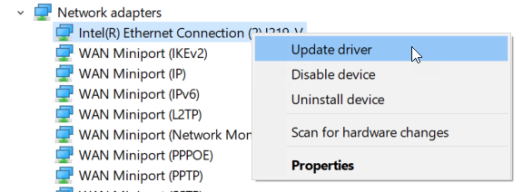
- Open Windows Device Manager from the Start menu or wRTOS Settings (Network / Interfaces page).
- Right-click on the device you want to convert, and then click Update driver.
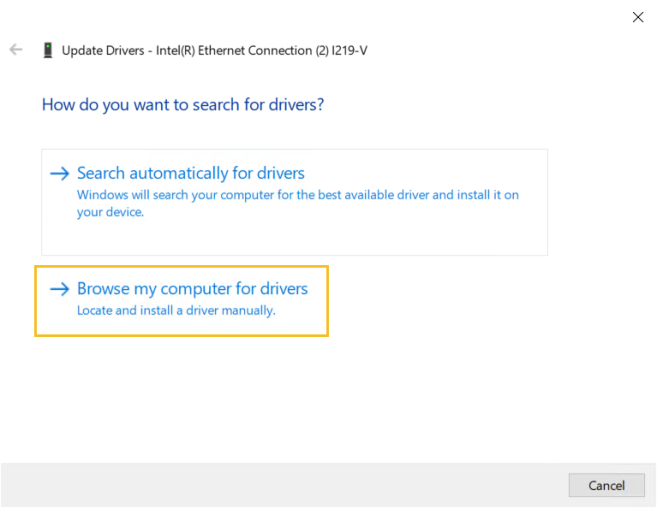
- Click Browse my computer for drivers.
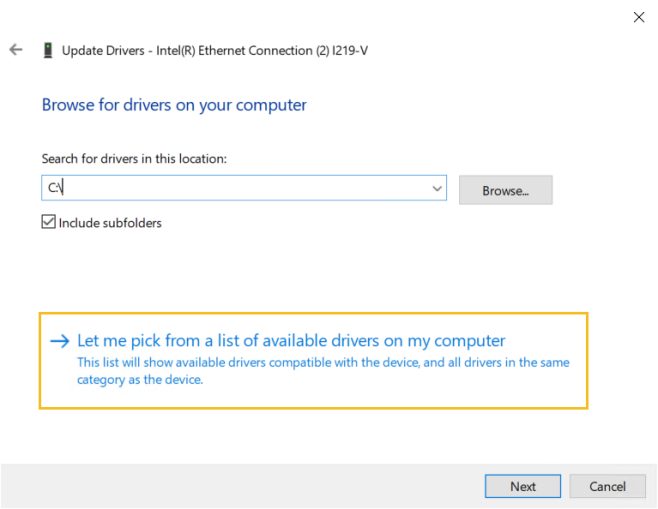
- Click Let me pick from a list of device drivers on my computer.
- Select the device driver you want to convert.
- Make sure the Show compatible hardware is selected.
- wRTOS drivers have model descriptions ending with (wRTOS).
- Click Next. Once Windows has successfully updated your driver, the converted device will appear in Device Manager:
- Network interface cards: under Network adapters
- All other devices: under wRTOS Drivers
Note: If the converted device doesn't appear in the Network Connections page in the Windows Control Panel following conversion, refresh the page.
- Configure the converted device:
- Add an interface for the converted device on the Network / Interfaces page in wRTOS Settings. Once added, click the name of the interface to view and configure the settings for that interface.
- You can optionally disable allocation of I/O Ports, use line-based interrupts (IRQs), request assignment of a specific IRQ, and share the requested IRQ with other wRTOS devices through the wRTOS Properties page for a selected wRTOS PCI/PCIe device.
Hints and Tips
- When Windows is unable to assign hardware resources to a device without introducing a resource conflict, Windows reports the device's requested boot hardware resource configuration.
- In some circumstances, Windows may initially fail to detect hardware resource conflicts. The conflict is not reported following the first system boot that follows the attempt to assign the hardware resources. The conflict may be correctly reported following subsequent system boots.
-
Be sure that the device is powered up before converting it to wRTOS. When a device is converted to wRTOS, wRTOS replaces the function driver for the device. If the replaced driver previously served as the power policy owner for the device, actively transitioning the device's power state, the device may not be accessible from wRTOS. The plug-and-play driver used by wRTOS does not power up devices, so a device that was not powered up at the time of conversion to wRTOS is not accessible following the conversion.
