Note: The tool compares the device's Index, Vendor ID, Product Code, Alias Address, and Explicit ID. If all match, the device-matching process will not be initiated. If one or more does not match, the device-matching process will be initiated.
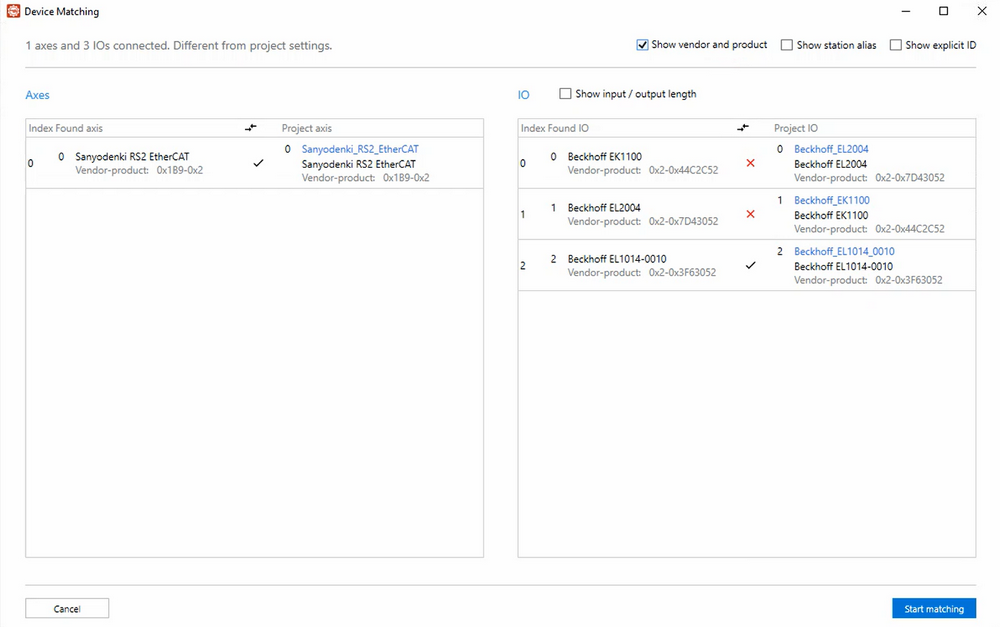
To start the device-matching process:
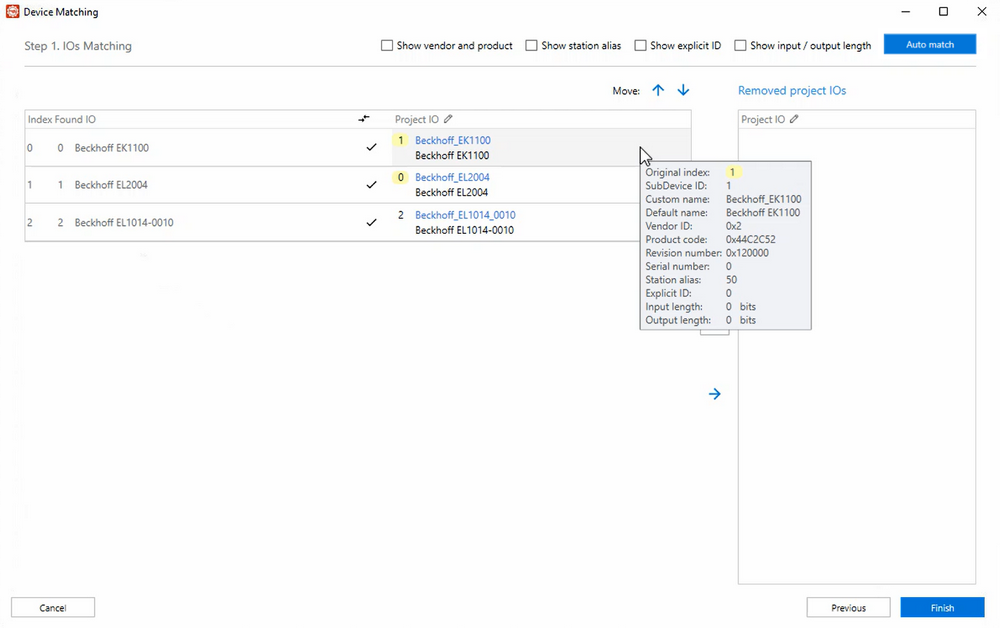
- In this example, the tool detects that the first two I/O devices' vendor ID and product code do not match those in the selected project. To match the devices with project I/O, we should swap the sequence order (index) of the found I/Os. Select Start matching.
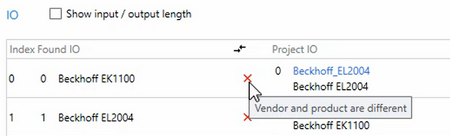
Note: You can select the Show vendor and product, Show station alias, and Show explicit ID checkboxes in the upper-right corner to view the vendor ID, product code, station alias address, and explicit ID. You can also select the Show input/output length checkbox in the IO field to show each I/O device's input and output length.
- You can manually adjust the changes or have the tool automatically match the devices.
- Manual matching: Select the first I/O in the Project IO field and click
 to move it down. The devices should now match.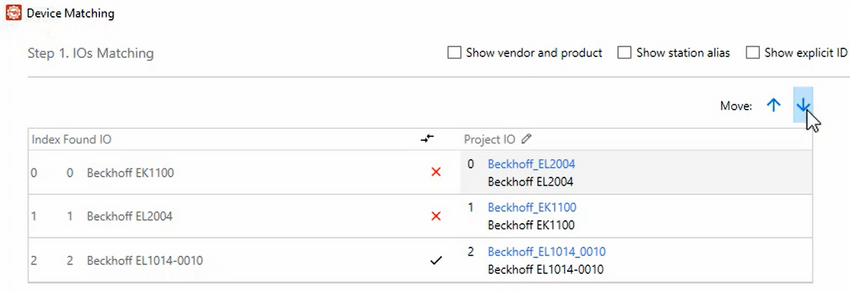
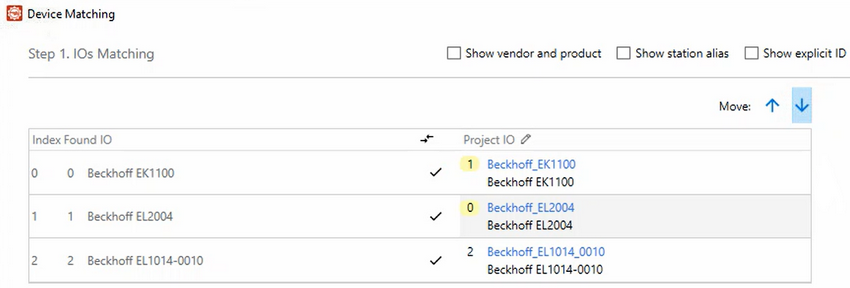
- Auto match: Select Auto match in the upper-right corner. The Auto Matching dialog appears.
Match project IOs to found IOs: Select this option to match the project I/Os to the found I/Os. If the vendor ID and product code of a project device are the same as those of a found device, you can select this option.
Match by their indexes (ignore device information): Select this option to match the project I/Os to the found I/Os based on their indexes, ignoring device information.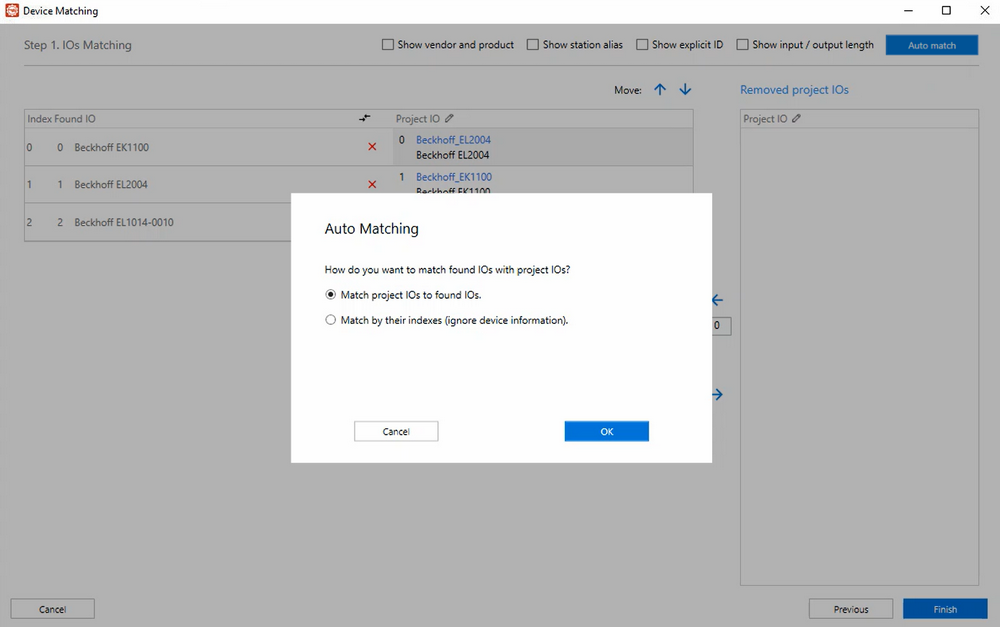
- Manual matching: Select the first I/O in the Project IO field and click
- Select Finish in the bottom-right corner to return to the main window.
Related topics:
