To use wRTOS E-CAT Configuration Tool:
- Connect your devices to the Runtime computer. If you don't have physical devices, skip this step and add simulated devices in Step 4.
- Open wRTOS E-CAT Configuration Tool.
- Establish the E-CAT MainDevice connection.
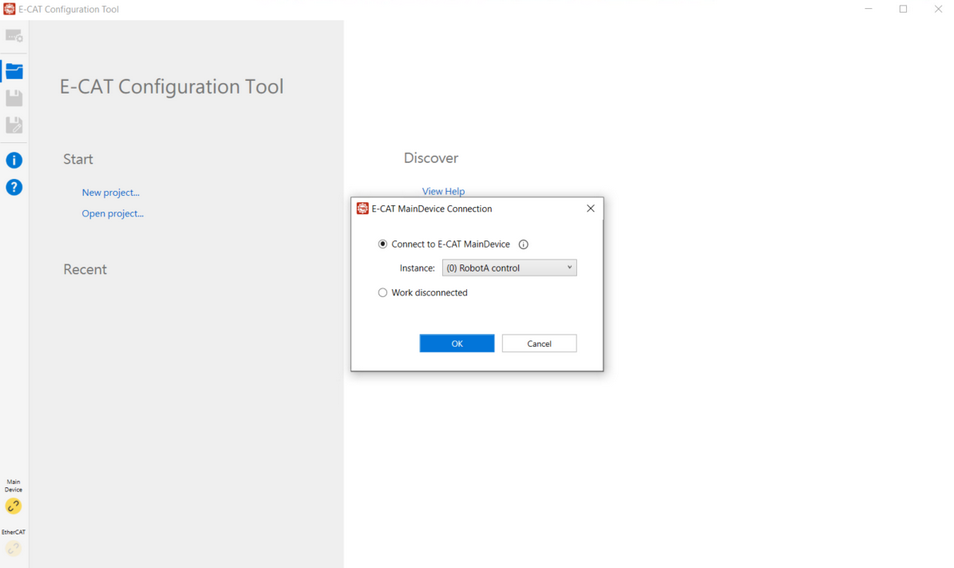
When you launch the tool, the E-CAT MainDevice Connection dialog appears. You can select whether to connect the tool to the E-CAT MainDevice by choosing Connect to E-CAT MainDevice or Work disconnected.
Note: You must create at least one E-CAT MainDevice instance before using the wRTOS E-CAT Configuration tool.
Note: If multiple E-CAT MainDevice instances are configured, the Instance drop-down menu will appear. You can select an instance ID, which will be displayed in the tool's title bar.
Note: You can open multiple E-CAT Configuration Tool windows and select a different E-CAT MainDevice instance for each one, allowing you to control them simultaneously.
- To create a project, select New project on the Startup page. The Connection Settings page appears. You must configure the basic EtherCAT network and device connection settings before connecting to the E-CAT MainDevice. To add simulated devices, see Devices Settings. For more details on connection settings, see Connection Settings.
- Establish the EtherCAT connection.
Click the Connect button to establish the connection between the tool and SubDevices connected to the E-CAT MainDevice. After the connection is established, the button becomes Disconnect.
Note: All settings are preserved if the tool is not closed, even if you select the Disconnect button.
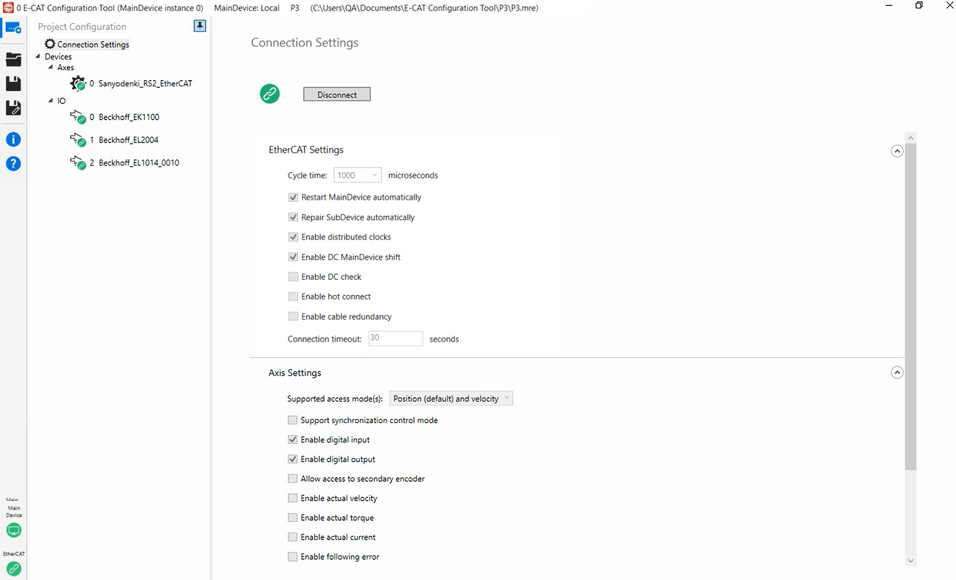
- When the EtherCAT connection is established, SubDevices connected to the E-CAT MainDevice automatically appear in the Devices list, ordered by device index.
To configure a device, select a device from the list, its data is displayed in the right pane. See Device Settings for more details.
To disconnect from the MainDevice, select the Main Device button in the bottom-left corner.
To disconnect from the SubDevices, select the Disconnect or EtherCAT button.
Note: If other applications establish the EtherCAT connection instead of this tool, you can use the tool to observe and manipulate real-time I/O signals and parameters for debugging and troubleshooting. After running your application, open E-CAT Configuration Tool to view these signals.
Related topics:
