To customize a device's Process Data Object (PDO):
- Follow Step 1-3 in Using wRTOS E-CAT ESI Import Tool to import the desired devices/modules to the E-CAT ESI Import Tool.
- Select a device from the SubDevice List, and then select the Process Data tab in the right pane.
- Select Manual from the Data configuration drop-down menu, the tool will automatically detect and display the supported PDOs and the corresponding variables (PDO entries) of the device in the Input Data and Output Data fields.
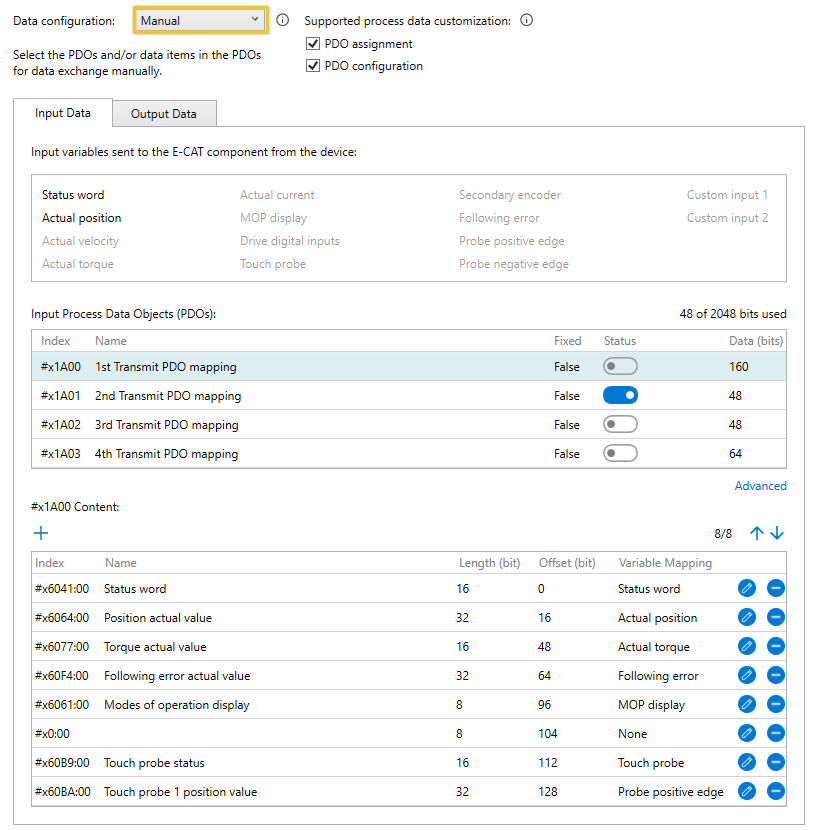
- Configure the input PDOs or output PDOs. Here we use input PDOs as an example. Select the Input Data tab. Under Input Process Data Objects, select a PDO and toggle its Status switch to enable process data exchange. The corresponding variables (PDO entries) of the selected PDO will be displayed in the below area. To add more variables, use the
 Add icon. To delete a variable, use the
  Delete icon. To adjust the order, use the
  Move up or
  Move down icons.
Note: The Status switch of certain PDOs can't be modified due to the following device constraints:
1. If the device doesn't support PDO assignment, the Status switch will be disabled.
2. Some PDOs may be excluded due to the selection of other PDOs.
3. If the PDO is mandatory, it can't be switched off.
- To edit a variable, select the
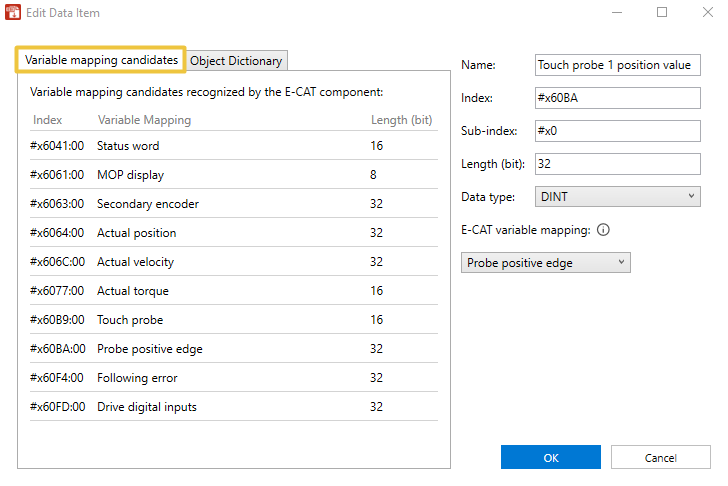
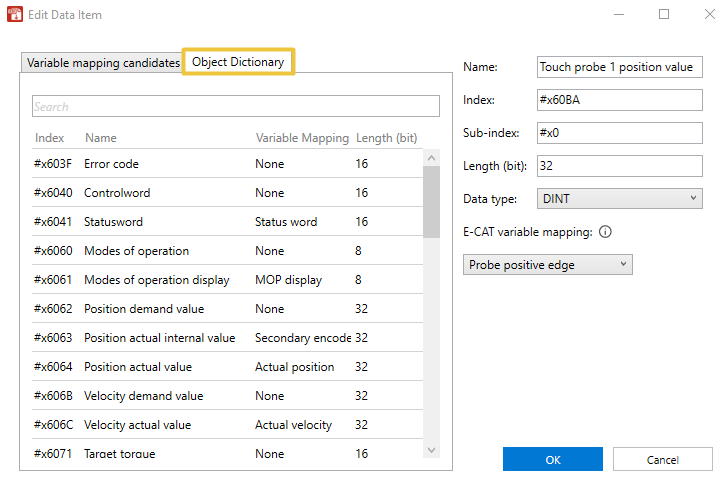
 Edit icon. The Edit Data Item dialog box appears.
- Select the Variable mapping candidates tab to find the variables recognized by the E-CAT component and choose the desired variables. Select OK.
- Alternatively, select the Object Dictionary tab to find the available SDO objects in the device's object dictionary and choose the desired variables. Select OK.
Note: If a device doesn't support PDO configuration, variables (PDO entries) of the selected PDO can't be configured.
- On the Toolbar, select the
 icon to save changes to the database.
Possible APIs used to read/write custom PDOs:
- RtecatGetAxisBuffers
- RtecatWriteAxisOutputBit
- RtecatWriteAxisOutputByte
- RtecatWriteAxisOutputWord
- RtecatWriteAxisOutputDWord
- RtecatReadAxisOutputBit
- RtecatReadAxisOutputByte
- RtecatReadAxisOutputWord
- RtecatReadAxisOutputDWord
- RtecatForceAxisInputBit
- RtecatForceAxisInputByte
- RtecatForceAxisInputWord
- RtecatForceAxisInputDWord
- RtecatReadAxisInputBit
- RtecatReadAxisInputByte
- RtecatReadAxisInputWord
- RtecatReadAxisInputDWord
Related topics:
