To use the wRTOS E-CAT ESI Import Tool:
- Open the wRTOS E-CAT ESI Import Tool.
- Select a database.
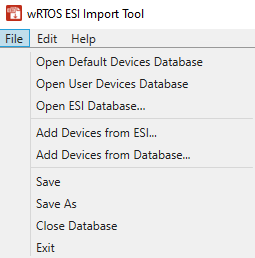
- On the Menu Bar, select File to open an ESI database. There are three database options:
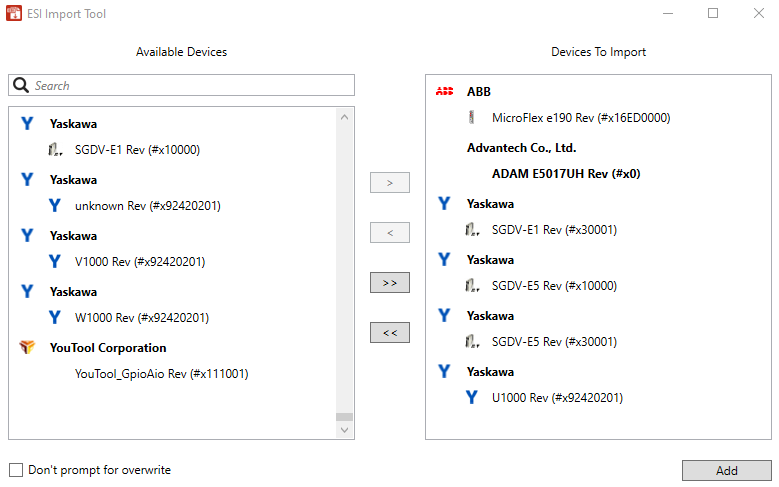
- Open Default Devices Database: This is the default database containing the ESI data for all supported EtherCAT devices. See File Menu for more details. Selecting this database will open all devices/modules. You can use the Move all devices to import list
 icon to move all devices/modules from the Available Devices field to the Devices To Import field. Select Add to import all devices/modules to the E-CAT ESI Import Tool. You can also select the desired devices/modules from the Available Devices field and use the Move device to import list
  icon to add them to the Devices To Import field.
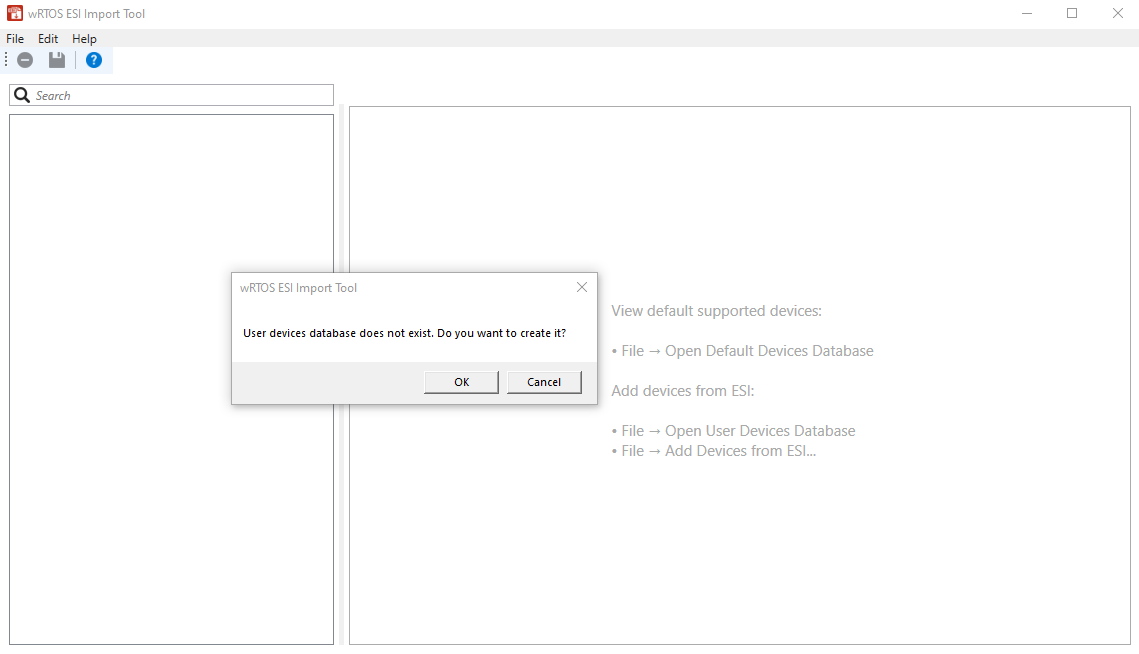
- Open User Devices Database: This database stores ESI data that users have added or modified. If you have created a user database, it will automatically open when choosing Open User Devices Database. You can choose some or all devices/modules from the database and select the Add button to add them to the E-CAT ESI Import Tool. Then, select the
 icon to save changes to the database. If you haven't created a user database, the tool will prompt you to create one. Select OK, the UserDevices database will be created automatically under C:\Program Files\IntervalZero\MaxRT\wRTOS\bin\ESI Database\UserDevices.
Note: The User Devices Database has the highest priority. If both the Default Devices Database and User Devices Database contain data for the same device/module, the settings from the User Devices Database will be used.
Note: To improve the E-CAT connection loading speed, you can store the ESI data for all devices/modules connected to the E-CAT component in the User Devices Database. Once the E-CAT component finds the ESI data of all devices/modules in the User Devices Database, it will skip reading the same ESI data from the Default Devices Database.
- Open ESI Database: You can use this option to open any database. This option will direct you to the ESI Database folder located at C:\Program Files\IntervalZero\MaxRT\wRTOS\bin\ESI Database. You can find and open the Database.esidb file in the MaxRTDevices or UserDevices folders, or any Database.esidb file stored elsewhere.
- This step is optional. Add more devices/modules to the database. There are two ways:
- On the Menu Bar, select File > Add Devices from ESI to add one or more ESI files in .xml format to the current database.
- On the Menu Bar, select File > Add Devices from Database to add ESI data from an existing ESI database to the current database.
- Configure device profile settings in the Properties tab.
- Select a device from the SubDevice List, and then select the Properties tab in the right pane. Under Custom E-CAT Settings, set the Display name, Minimum cycle time, and Default resolution. If necessary, you can check and modify settings in the Basic Settings or Advanced Settings fields.
- This step is optional. You can customize the Process Data Object (PDO) using the Process Data tab. See Customizing Device Process Data Object (PDO) for more details.
Note: Generally, you should only modify settings in the Properties tab. Adjust the settings in the CoE and Process Data tabs only if the data in the ESI file is incorrect.
- Save changes to the database. On the Toolbar, select the icon to save changes to the database.
Note: We recommend making changes to the user database, not the default database.
- This step is optional. If you want to deploy the ESI database on other SubDevices, copy and paste the folder into the new SubDevice's database folder.
Related topics:
