On the Memory page in wRTOS Settings, you can customize default behavior for how the wRTOS Subsystem interacts with Windows during memory allocation. See below for complete descriptions of the available settings.
Note: Some changes to wRTOS Settings require a restart of the Subsystem. When the Subsystem must be restarted, a prompt will appear in the wRTOS Settings footer.
In this section:
 Accessing Memory Settings
Memory Profile
Under Memory profile, you can configure the approximate amount of system memory available to wRTOS and the percentage of that memory that is expected to be used by Windows applications running with your real-time applications. The amount of memory available to wRTOS is calculated using those values.
Note: These values are not enforced by the Subsystem. They are used by wRTOS Settings to provide a graphical representation of system memory usage (see Memory allocation chart below).
Available system memory
This value represents the amount of available system memory, in gigabytes, using this formula:
Available system memory = Memory used by Windows + Available wRTOS memory
The default value is based on the amount of available memory detected by the wRTOS installer. You can view the current amount of available system memory in the Windows Task Manager under Performance / Memory
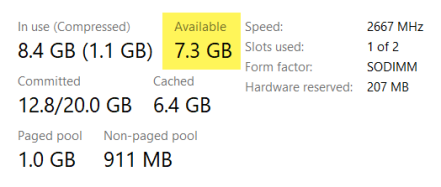
Note: It is good practice to periodically compare the amount of available system memory in wRTOS Settings with the actual amount in the Windows Task Manager.
To change this setting:
Note the Available value in the Windows Task Manager and enter it in the Available system memory text box.
Percentage expected to be used by Windows
This value is the percentage of Available system memory that is expected to be used by Windows applications running with your real-time applications. The default is 50%. The remaining percentage of the available system memory is the amount available to wRTOS:
Percentage used by Windows memory = Memory used by Windows / Available System memory * 100
To approximate this value, run your full application in Windows and wRTOS, view the memory usage, and customize this value accordingly.
To change this setting:
Drag the Percentage expected to be used by Windows slider or enter a new value in the text box.
Note: The acceptable range for this value is 1-99%.
Memory allocation chart
The Memory profile chart shows the percentage of memory used by the various allocation spaces (see Subsystem and Application Memory Allocation Behavior below). Each segment in the chart has a unique color corresponding to a memory allocation section on the page. Expand a memory allocation section to view details on its MSpace settings.
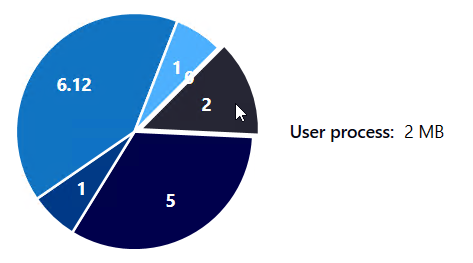
The chart updates dynamically as changes are made to memory allocation space values on the page.
Subsystem and Application Memory Allocation Behavior
The wRTOS memory configuration contains multiple allocation spaces (MSpaces) that make up a system: the wRTOS Subsystem, Network Link Layer (NL2), TCP/IP Stack, Network Relay, E-CAT, and each RTSS process and Windows proxy process. Each has an internal MSpace for internal objects and bookkeeping, and an external MSpace for process allocations. Subsystem memory needs for internal objects are allocated within the internal allocation space. Memory allocation requests from RTAPIs, including from C-Runtime libraries, are allocated within the external allocation space. For more information, see Allocation Spaces.
Memory is allocated from one of the process MSpaces unless the memory is required to remain over process exit, such as memory for IPC objects and cross-process shared memory. Such allocations are made from the Subsystem’s MSpace.
The Subsystem’s external MSpace is created when the first memory request is made, unless commit is selected, in which case the memory is allocated as soon as the Subsystem starts. Individual process external MSpaces behave similarly. Memory is allocated on the first memory request unless RtssRun (with /i) or wRTOS Task Manager (with the MSpace initial size option) is used to start the process, or when a Native or Managed API is passed the initial size of the process’s MSpaces. It provides deterministic behavior for normally non-deterministic functions, as well as greater flexibility and functionality after a system stop (blue screen).
You can specify the initial size of the local memory allocation spaces (MSpaces) in kilobytes. If RTSS applications exhaust the memory you initially allocate, you can configure each MSpace to automatically expand.
Note that expand will request memory when an allocation request cannot be fulfilled with the remaining memory available in an MSpace. Requesting memory from Windows introduces non-deterministic behavior during the expansion of the pool and cannot be called in the shutdown handler. To avoid this scenario, it is important to be aware of your applications' memory needs and specify an initial MSpace size that will support them.
On the Memory page in wRTOS Settings, you can configure default memory values for the available wRTOS allocation spaces.
Allocation spaces:
User Process
Expand the User process section to view and configure settings for this allocation space. The section header displays the initial estimated amount of memory allocated to the space and the approximate number of concurrent processes that can be run based on this allocation. This information updates dynamically when changes are made to the settings for this memory allocation space.

| Setting | Description | To change this setting |
|---|---|---|
| Minimum size for internal MSpace (kilobytes) | The minimum size of each RTSS processes' internal MSpace. |
Drag the slider or enter a new value in the text field. Note: Changes to this value are applied instantly. |
| Minimum size for external MSpace (kilobytes) | The minimum size of each RTSS processes' external MSpace. |
Drag the slider or enter a new value in the text field. Note: Changes to this value are applied instantly. |
| Auto expand MSpaces |
You can configure wRTOS to automatically request additional memory (expand) once the MSpace is exhausted. This setting determines whether an RTSS processes' MSpaces will expand to meet memory demands. IMPORTANT: Expanding memory introduces non-deterministic behavior. |
Do one of the following:
Note: If the memory requested is not available, your memory allocation request will fail. |
| Auto shrink MSpaces | Determines whether to shrink MSpaces when freeing memory. |
Do one of the following:
|
|
Zero memory on allocation |
The memory allocated by malloc or similar C-Runtime functions is not initialized to zero according to the C99 specification, which Windows follows. For more information, see Zeroing Memory on Allocation. Note: Zeroing memory may cause a performance lag. When disabled, memory requests from some C-Runtime functions or RTAPIs will not be initialized to zero at allocation. However, by definition, memory requests from calloc/_recalloc, VirtualAlloc, and HeapAlloc/HeapReAlloc with the HEAP_ZERO_MEMORY flag will be initialized to zero at allocation. |
Do one of the following:
|
Subsystem
Expand the Subsystem section to view and configure settings for this allocation space. The section header displays the initial estimated amount of memory allocated to the space. This value updates dynamically when changes are made to the settings for this memory allocation space.

| Setting | Description | To change this setting |
|---|---|---|
| Subsystem process internal MSpace minimum (kilobytes) | The minimum size of the system process's internal MSpace. |
Drag the slider or enter a new value in the text box. Note: Changes to this value are applied instantly. |
| Commit at Subsystem startup | Determines whether to allocate Non-Paged memory from Windows into the MSpace's local pool at Subsystem startup. |
Do one of the following:
|
| System process external MSpace minimum (kilobytes) | The minimum size of the system process's external MSpace. All process shared memory and IPC object memory allocations come from this value. |
Drag the slider or enter a new value in the text box. Note: Changes to this value are applied instantly. |
| Auto expand MSpaces |
Determines whether the system process's MSpaces will expand to meet memory demands. IMPORTANT: Expanding memory introduces non-deterministic behavior. |
Do one of the following:
IMPORTANT:
|
| Auto shrink MSpaces | Determines whether to shrink MSpaces when freeing memory. |
Do one of the following:
|
Network Link Layer (NL2)
Note: This section only appears when the Network Link Layer (NL2) component is installed.
Expand the Network Link Layer (NL2) section to view and configure NL2 memory settings. The section header displays the number of active NL2 interfaces, and the initial estimated amount of memory allocated to the NL2. The latter value updates dynamically when changes are made to the NL2 memory settings.

| Setting | Description | Action |
|---|---|---|
| NL2 external MSpace minimum (kilobytes) |
The minimum size of the NL2 process's external MSpace. This value is based on the number of enabled interfaces. The minimum value is 64 kilobytes. The default value is 1024 kilobytes. For more information, see Memory Allocated at Startup of the NL2. |
Drag the slider or enter a new value in the text box. Note: Changes to this value are applied instantly. |
| Auto expand MSpaces |
Determines whether the NL2 process' MSpaces will expand to meet memory demands. IMPORTANT: Expanding memory introduces non-deterministic behavior. |
Do one of the following:
Note: This setting cannot be turned off when the NL2 external MSpace minimum value is too small. |
TCP/IP
Note: This section only appears when the TCP/IP component is installed and licensed.
Expand the TCP/IP section to view and configure TCP/IP memory settings. The section header displays the number of active TCP/IP interfaces, and the initial estimated amount of memory allocated to the TCP/IP. The latter value updates dynamically when changes are made to the TCP/IP memory settings.

| Setting | Description | To change this setting |
|---|---|---|
| External MSpace minimum (kilobytes) |
The minimum size of the TCP/IP Stack process's external MSpace. The minimum is 64 kilobytes. The default value is 6272 kilobytes. This value must be at least the TCP/IP heap allocation size plus 2176 kilobytes. |
Drag the slider or enter a new value in the text box. Note: Changes to this value are applied instantly. If the TCP/IP Stack is running when this value is changed, you must restart it. |
| Memory allocated to the TCP/IP heap (kilobytes) |
For performance reasons, the TCP/IP Stack allocates all necessary memory when it starts. This allocated memory value should be large enough to include all transmit and receive buffers.
This memory is allocated from the External MSpace (see above), so the TCP/IP heap size MUST be 2176 KB less than the Minimum size for external MSpace (kilobytes) value if Auto expand MSpaces is set to OFF (see below). The required memory depends on the number of interfaces and open sockets. |
Enter a value in the text box. |
| Auto expand MSpaces |
Determines whether the TCP/IP Stack process's MSpaces will expand to meet memory demands. IMPORTANT: Expanding memory introduces non-deterministic behavior. |
Do one of the following:
|
Network Relay
Expand the Network Relay section to view and configure Network Relay memory settings. The section header displays the number of active Network Relay interfaces, and the initial estimated amount of memory allocated to the Network Relay. The latter value updates dynamically when changes are made to the Network Relay memory settings.

| Setting | Description | Action |
|---|---|---|
| External MSpace minimum (kilobytes) |
The minimum size of the Network Relay process's external MSpace. This value is based on the number of enabled interfaces. The minimum value is 64 kilobytes. The default value is 1024 kilobytes. |
Drag the slider or enter a new value in the text box. Note: Changes to this value are applied instantly. |
| Auto expand MSpaces |
Determines whether the Network Relay process' MSpaces will expand to meet memory demands. IMPORTANT: Expanding memory introduces non-deterministic behavior. |
Do one of the following:
Note: This setting cannot be turned off when the External MSpace minimum value is too small. |
Monitoring Memory Usage
Set the amount of contiguous non-paged memory used by the Subsystem for events collected by wRTOS monitoring. This memory is allocated from Non-Paged pool memory and is allocated when monitoring is enabled.
Note: This section is grayed-out when monitoring is not enabled.
Note: Depending on the number of events you are monitoring and the frequency of those events, you might need to increase this value to avoid receiving Data Lost events due to insufficient internal buffer space. If you encounter Data Lost events, increase the amount of memory dedicated to monitoring (and consider monitoring fewer kinds of events).
To change this setting:
Drag the Non-paged memory allocated to monitoring slider or enter a new value in the text box.
