MiniTutorial
Best Practices for Disabling Automatic Expansion of MSpaces
When wRTOS is configured to use Local memory through wRTOS Settings, it has separate MSpaces for its real-time Subsystem, networking components, and for each real-time user process. Memory is allocated from a process’ internal or external MSpace unless the memory is required to stay over process exit, such as memory for IPC objects and cross-process shared memory, in which case allocations are made from the Subsystem’s internal or external MSpace.
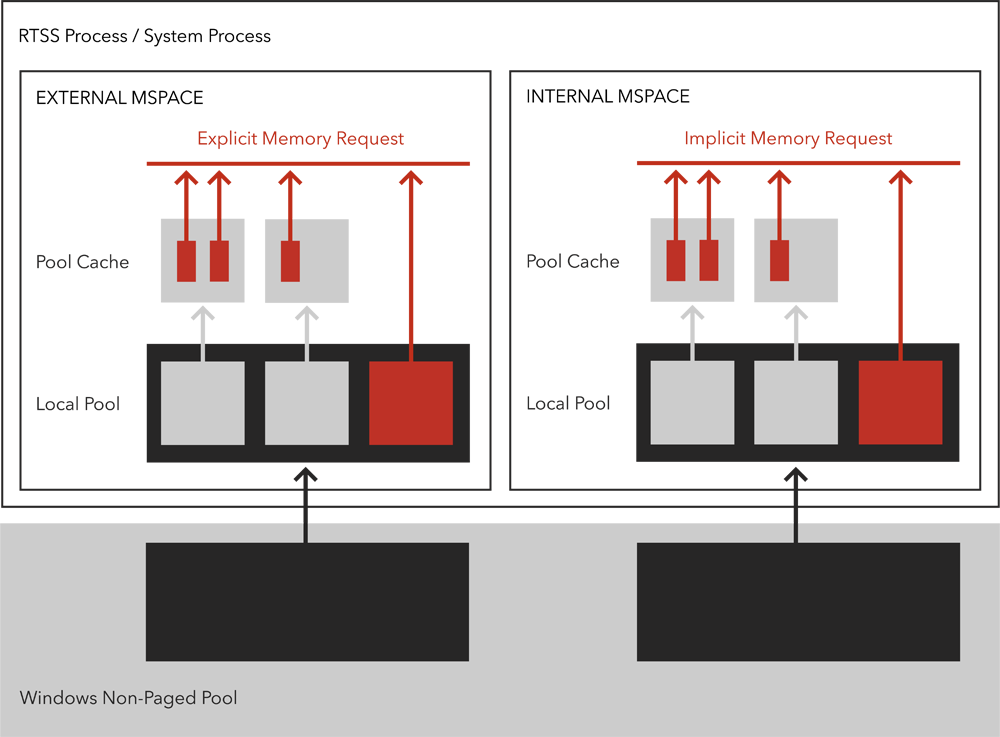
By default, all MSpaces are configured to automatically expand to ensure that memory is available when needed. However, this can introduce latencies in a process if an MSpace needs to expand when performing a time-critical activity. In wRTOS Settings, you can modify the amount of memory allocated for the different MSpaces and can optionally disable the Auto expand MSpaces setting.
If you are seeing latency in your processes and would like to disable Auto expand MSpaces, you will be responsible for calculating the amount of memory your system needs. This tutorial will walk you through the best way to determine the amount of memory needed by the Subsystem and user processes need. Remember: if you modify your processes or Subsystem you will need to recalculate memory needs.
Sections:
- Understanding automatic MSpace expansion
- Configuring minimum MSpace sizes
- Expanding MSpaces from an RTSS process
- Expanding MSpaces from a Windows process
Understanding Automatic MSpace Expansion
By default, wRTOS is configured to automatically add in additional memory (Auto expand MSpaces) once an MSpace is exhausted. This ensures that Subsystem components and user applications always have sufficient memory to run. However, because expanding memory introduces non-deterministic behavior, there will likely be scenarios where you may want to disable the Auto expand MSpace settings.
- C applications: memory allocation returns NULL with an error of ERROR_NOT_ENOUGH_MEMORY.
- C++ applications: memory allocation performed by operator new will throw a C++ exception of type std::bad_alloc, unless the non-throwing overload of operator new is used, in which case it returns nullptr.
The TechNote Diagnosing Local Memory Allocation Space (MSpace) Exhaustion Issues describes how to diagnose occurrences of local memory exhaustion within a non-expandable internal or external memory allocation space (MSpace). If after reviewing this TechNote you decide to set a process to freeze on MSpace exhaust when Auto expand MSpace is disabled, when memory exhaustion occurs an error message box will appear with two process IDs (PIDs): the PID of the process to which the exhausted MSpace belongs and the PID of current process that caused the exhaustion and was unable to get the memory it needed. The process that owns the exhausted MSpace is frozen. You can use the RtMSpaces utility to display usage information for the frozen MSpace. You can then follow the instructions below to ensure your system and processes will have the necessary memory.
MSpace Expansion Behavior at Network Startup
The wRTOS real-time network is comprised of the Network Link Layer (NL2) and an optional TCP/IP Stack. These components require a certain amount of memory to start, based on the number of enabled interfaces. By default, each is configured with enough memory to start with a single enabled interface.
If there is not enough memory allocated to start these network components and/or their enabled interfaces, and the corresponding Auto expand MSpaces settings are disabled, the following expansion behavior occurs:
- When the NL2 starts, the NL2’s Process Internal/External MSpaces and the System Internal/External MSpaces expand to ensure the NL2 has enough memory to start.
- When the TCP/IP Stack starts, the Stack’s Process Internal/External MSpaces and the System Internal/External MSpaces expand.
For each of these MSpaces, if the MSpace contains less than n MB free memory (where n = 1 MB times the number of enabled NL2 interfaces), the MSpace(s) will expand by n MB.
See Memory Settings for more information on configuring the different MSpaces.
Configuring Minimum MSpace Sizes
If you see latency that you suspect might be caused by automatic memory expansion, expanding the initial size of the system MSpaces might solve the issue.
Where to change MSpace minimums:
- You can set the minimum initial sizes of the system process internal MSpace and the system process external MSpace separately through wRTOS Settings.
- You can set the minimum initial default size for the process internal MSpace and the process external MSpace through wRTOS Settings.
- For Networking, you can set the minimum initial sizes of the Network Link Layer (NL2) external MSpace and the TCP/IP Stack external MSpace separately through wRTOS Settings.
Determining memory requirements and changing MSpace minimums:
Before you disable Auto expand MSpaces, you must estimate and configure the necessary amount of memory the Subsystem has for internal and external resources for the entire system. You must also estimate and configure the necessary amount of memory your application processes need.
- Open the wRTOS Settings and navigate to Subsystem > Manage memory.
- Make sure Auto expand MSpaces is enabled for both the process MSpace and the system process MSpace.
- Start the Subsystem and your user applications.
- Before your applications exit, use the RtMSpaces utility to display memory usage:
RtssRun RtMSpaces /all
- Check the memory usage of each MSpace for the system process and application processes. If MSpace peak usage is larger than the current MSpace minimum size, that MSpace is already expanded. Increase the minimum size(s) in wRTOS Settings for any MSpace whose current minimum is too small.
- If peak usage is larger than minimum size of internal or external MSpace for system process, round up the peak usage to next page size, convert it to kilobytes, and set it using the corresponding slider wRTOS Settings.
- If peak usage is larger than minimum size of external MSpace of the application process, round up the peak usage to the next page size, convert it to kilobytes, and use RtssRun with parameter /i to set it as the initial size of the external MSpace.
Note: To change the initial size for all RTSS processes, you can set a new initial size in wRTOS Settings.
- In wRTOS Settings, navigate to Subsystem > Manage memory and disable Auto expand MSpaces for both the process MSpace and the system process MSpace.
- Restart the Subsystem and user applications.
Expanding MSpaces from an RTSS Process
To avoid memory request error when Auto expand MSpaces is disabled, use the following RTAPIs to expand MSpaces in RTSS process.
Note: These steps require the wRTOS SDK.
To expand system process and application Process MSpaces:
- Call RtGetProcessMSpace:
- to retrieve the descriptors of the MSpaces for the calling process, pass GetCurrentProcess() for parameter hProcess.
- to retrieve the descriptors of the MSpaces for the system process, pass NULL for parameter hProcess.
- Call RtQueryProcessMSpace and pass NormalPerformanceLevel for parameter PerformanceLevel to query MSpace usage for the current process and system process.
- If the returning MaxContigFreeMem value is less than the memory size you plan to allocate, and AutoExpandEnabled is FALSE, call RtExpandMSpace to expand the MSpace with the size you plan to allocate. Note that calling RtExpandMSpace is non-deterministic.
- Allocate the memory with the size you plan to use.
See the Dynamic MSpace Configuration sample for sample code you can use to expand RTSS process MSpaces.
Expanding MSpaces from a Windows Process
To avoid memory request error during startup RTSS process when Auto expand MSpaces for the system process MSpace is disabled, use the following RTAPIs to expand the system process internal MSpace from a Windows process.
Note: These steps require the wRTOS SDK.
To expand Windows Process MSpaces:
- Call RtGetProcessMSpace to retrieve the descriptors of the MSpaces for the system process by passing NULL for parameter hProcess.
- Call RtQueryProcessMSpace by passing the descriptor of the system process internal MSpace for MSpace parameter and passing NormalPerformanceLevel for parameter PerformanceLevel.
- If the returning MaxContigFreeMem value is less than the image size of the RTSS process you plan to start, and AutoExpandEnabled is FALSE, call RtExpandMSpace to expand the system process internal MSpace with that image size.
See the Dynamic MSpace Configuration sample for sample code you can use to expand Windows process MSpaces.
Related topics:
